Why Your SD Card Hits a Brick Wall at 4GB (And How to Fix It)
That frustrating file transfer error isn't broken hardware, it's a stubborn 30-year-old filesystem limitation.
You bought a massive 128GB high-speed memory card, tossed your camera footage onto your computer, and tried to drag a single massive 4K video file back onto the card. Suddenly, a jarring error message pops up telling you the file is too large for the destination. You check the storage meter and see 90 gigabytes of free space staring back at you.
This maddening brick wall happens because factory-fresh SD cards usually ship formatted in FAT32, an ancient filesystem from the 1990s that chokes on any single file larger than 4GB. Whether you are prepping storage for a Steam Deck, a DSLR, or a Raspberry Pi, here is how to swap out that outdated filesystem for something that actually belongs in this decade without destroying your card.
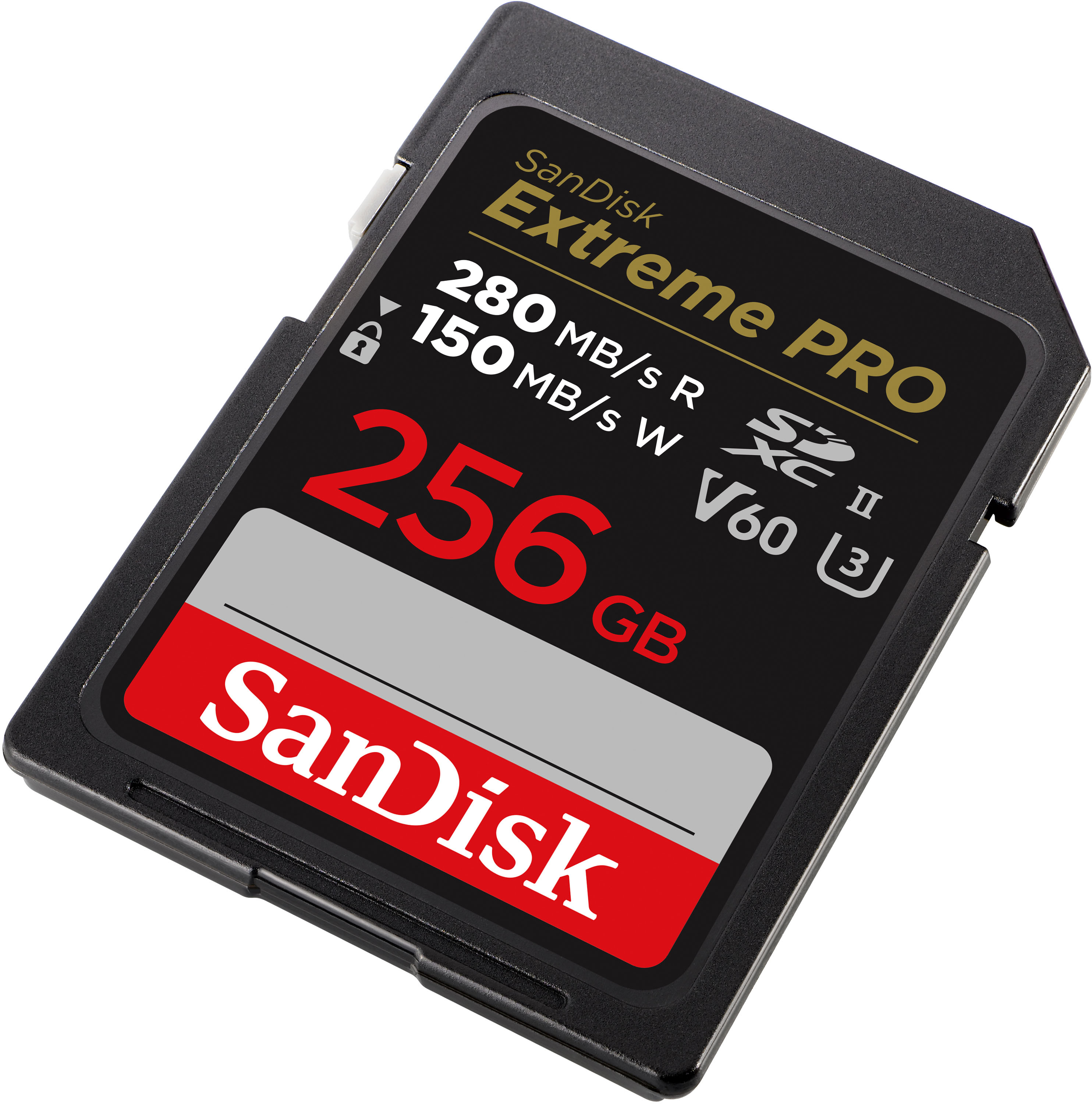
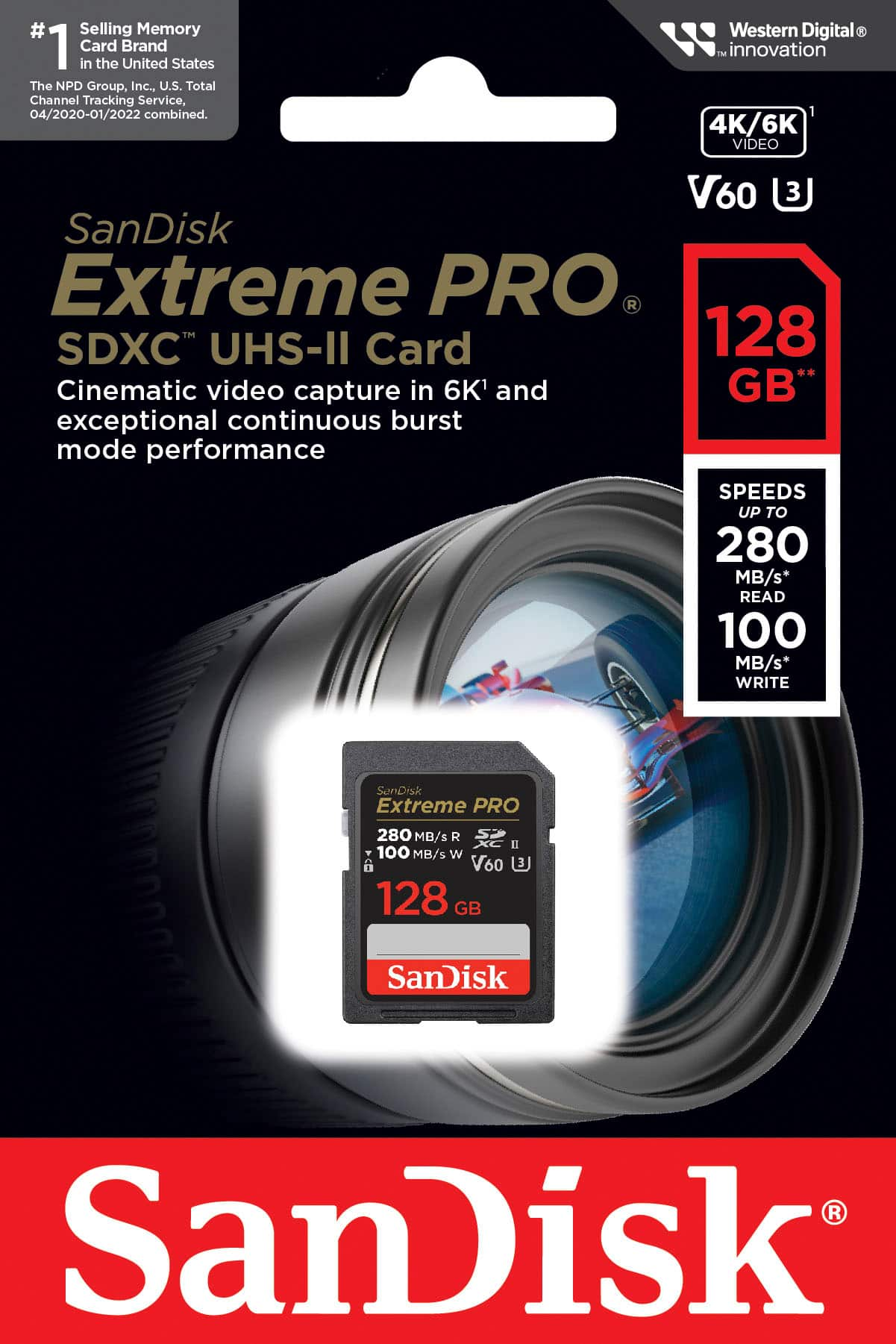
SanDisk Extreme Pro SD Card
Most cards above 32GB come formatted as exFAT out of the box, but smaller capacities or older cards almost always default to FAT32. While FAT32 is universally compatible with everything from smart fridges to retro gaming handhelds, its maximum single file size limit of 4GB and partition size limit of 32GB in Windows make it a nightmare for modern workflows.
Switching to exFAT or NTFS removes these arbitrary roadblocks entirely. exFAT is the gold standard for portable flash storage because it is natively supported by both modern Windows and macOS computers, while letting you store files that are hundreds of gigabytes in size.
Windows Disk Management Utility

Windows has a built-in formatting tool that works fine for everyday drives, but it arbitrarily hides the exFAT and NTFS options when formatting partitions over a certain size on removable media. If you right-click your drive in File Explorer and select Format, you might find yourself stuck with only NTFS or FAT32 options depending on the card capacity.
This is why grabbing a reliable third-party formatting tool or using the command line saves you from pulling your hair out. Windows command-line utilities bypass the graphical interface limits and let you write any filesystem you want directly to the flash memory controller.
Anker USB 3.0 SD Card Reader

Before you touch any software settings, make sure your physical hardware is not slowing you down. Cheap, no-name USB 2.0 card readers will turn a five-minute format and file transfer into an overnight waiting game.
Using a quality USB 3.0 reader ensures that your computer communicates with the flash memory controller at maximum bus speeds. Always plug your reader directly into a rear motherboard USB port on a desktop or a primary USB-C port on a laptop to avoid intermittent power drops during write operations.
How to Reformat Your SD Card to exFAT
What You Need Before Starting: An SD card, a computer running Windows or macOS, and a card reader.
- Step 1: Backup Your Data — Copy any important photos, videos, or documents from the SD card to your computer hard drive because formatting will completely erase everything on the card.
- Step 2: Connect the Card — Insert your SD card into your card reader and plug it into your computer. Open File Explorer or Finder to verify the drive letter assigned to it.
- Step 3: Open Disk Management (Windows) — Press the Windows Key + X and select Disk Management from the popup menu, or type 'Disk Management' into the Windows search bar.
- Step 4: Locate and Format — Find your SD card in the lower panel of Disk Management, right-click its primary partition, select Format, choose exFAT as the filesystem, and set the allocation unit size to Default.
- Step 5: Verify the Change — Complete the format process, open the drive properties, and confirm that the filesystem now reads as exFAT and accepts files larger than 4GB.
Troubleshooting: What If Something Goes Wrong?
PROBLEM 1: Windows gives a 'Disk is Write-Protected' error when trying to format.
THE FIX: Check the physical side of your full-size SD card for a tiny plastic switch. If it is pushed down toward the lock position, flip it up. If using a micro SD card in an adapter, ensure the adapter switch is also unlocked.
PROBLEM 2: The SD card shows RAW filesystem and refuses to format.
THE FIX: Open Command Prompt as Administrator, type 'diskpart', type 'list disk', identify your SD card number, type 'select disk X' (replace X with your disk number), and type 'clean' followed by 'create partition primary' before formatting.
PROBLEM 3: My camera or smart device won't read the card after formatting to exFAT.
THE FIX: Older hardware or specific Linux-based devices do not have exFAT drivers licensed or installed. Check your device manual and reformat the card back to FAT32, keeping your individual files under the 4GB ceiling.
Original step-by-step tech guide & analysis by KejaniTech. Tried this guide or ran into a question? Drop a comment below!


Comments
Post a Comment