Why Waymo's School Bus Problem Is Headed for a Federal Showdown
Federal regulators say software fixes missed the mark, leaving autonomous fleets scrambling to prove safety around school zones.

When an autonomous car encounters a flashing red stop sign on a yellow school bus, the correct behavior is dead simple for a human driver: stop completely and stay put. But for self-driving fleets, handling school buses has turned into an ongoing engineering headache that has finally caught the attention of federal safety investigators.
Despite software updates rolled out last year to patch the issue, the National Highway Traffic Safety Administration is pushing back hard after noticing recurring bugs. We are looking at why spotting a school bus remains such a brutal edge case for modern computer vision, and what it takes to audit autonomous navigation logs.
Waymo Driver Sensor Suite
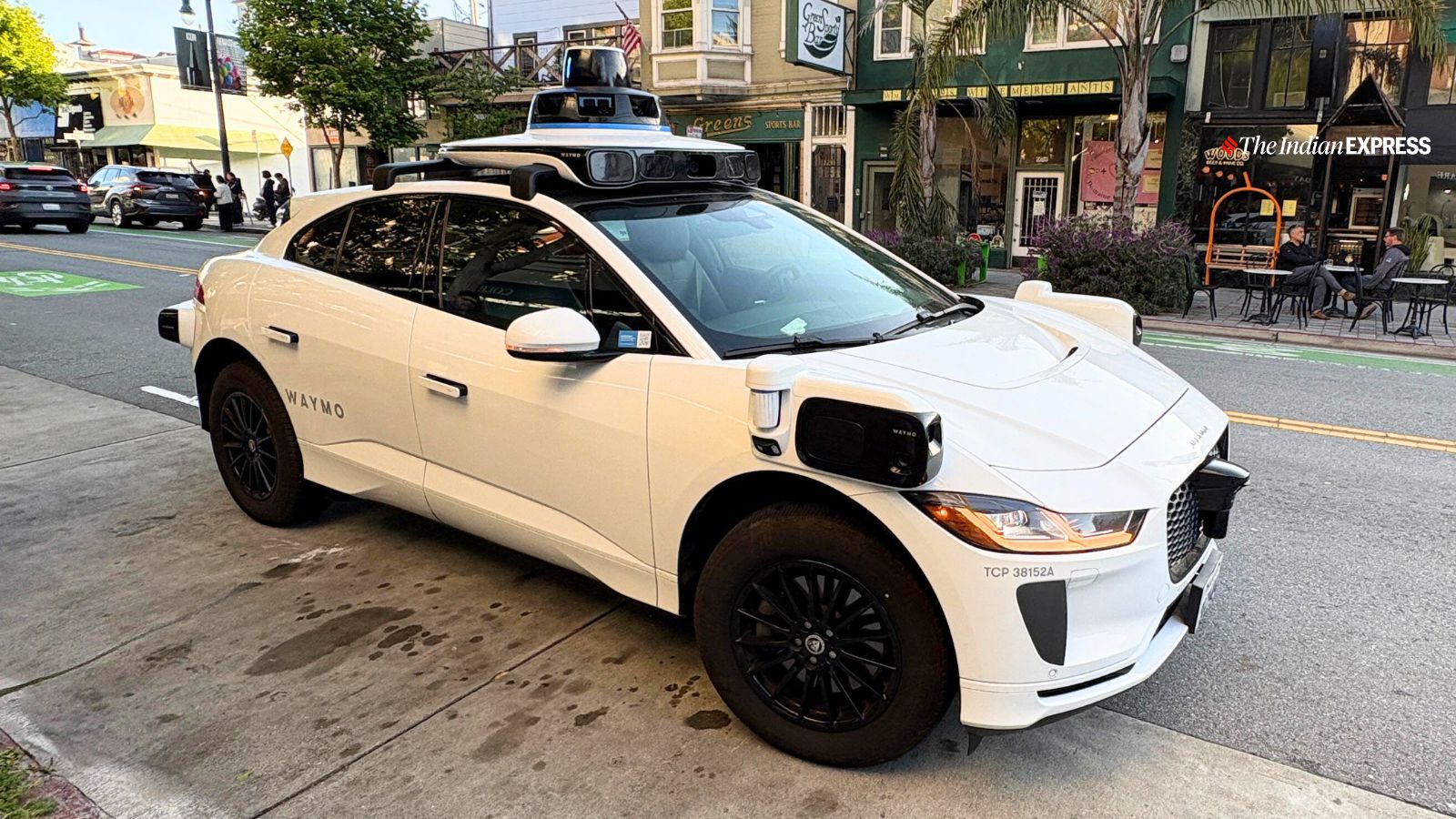
The core issue is not a lack of expensive hardware. Modern robotaxis rely on a dense sensor fusion pipeline combining 360-degree cameras, long-range lidar, and radar units to map the immediate environment in real time. When a school bus deploys its mechanical stop arm, the physical arm extends into traffic lanes, creating a sudden geometry change that must be classified instantly by object-detection neural networks.
While lidar accurately measures distance, object classification models sometimes misinterpret the swinging stop sign or fail to correlate the flashing warning lights with the legal requirement to halt entirely. This leads to hesitation, incorrect routing around the bus, or outright compliance failures that trigger federal investigations.
Waymo Robotaxi
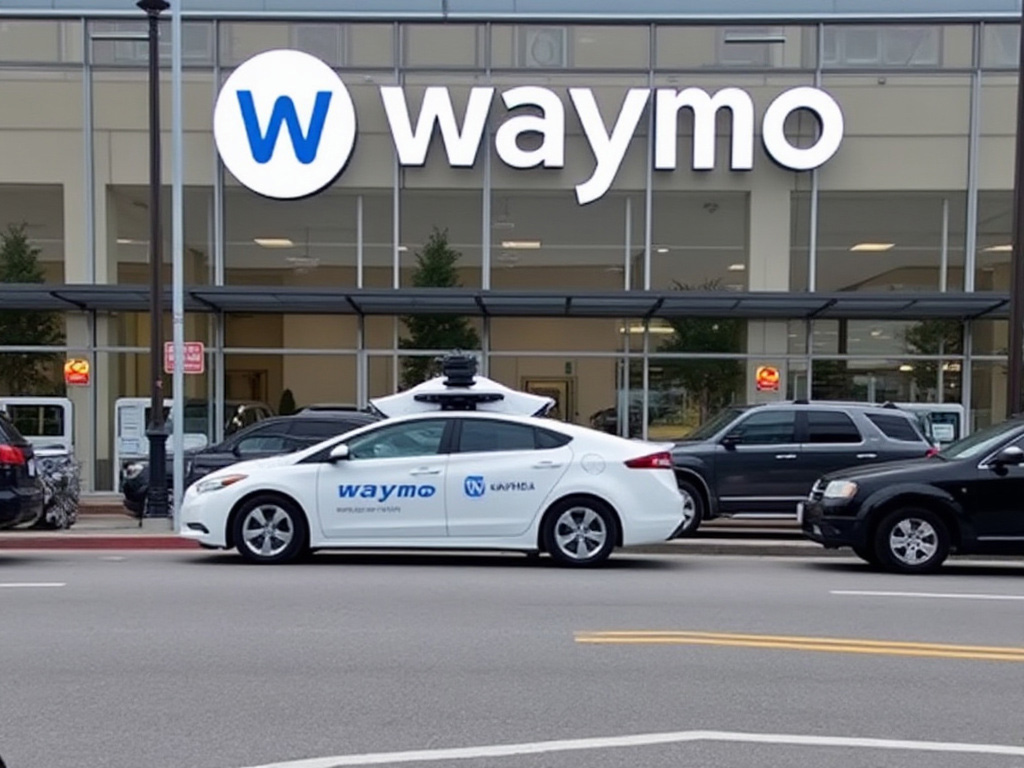
Autonomous fleets operate by processing millions of miles of driving logs, flagging unusual encounters, and feeding those edge cases back into machine learning training loops. When a vehicle executes an illegal maneuver around a stopped bus, safety engineers have to pull the telemetry logs, isolate the exact sensor frame where the misclassification occurred, and adjust the perception confidence thresholds.
However, simply tweaking software weights in a machine learning model can introduce regressions elsewhere, sometimes causing the vehicle to slam on its brakes for shadows or harmless roadside objects. Balancing extreme caution with predictable traffic flow is the central engineering bottleneck holding back unsupervised deployment.
Autonomous Vehicle Diagnostic Terminal

For everyday drivers sharing the road with these systems, understanding how autonomous vehicles interpret traffic signals helps demystify unexpected behaviors on city streets. If you encounter a robotaxi acting erratically near a school zone, keeping a safe following distance and avoiding sudden lane changes gives the vehicle's prediction engine more predictable inputs to process.
Have you noticed autonomous vehicles behaving strangely near public transit or school buses in your city? Let us know what you are seeing on the pavement.
How to Audit and Review Open-Source Autonomous Driving Telemetry Logs
What You Need Before Starting: A Linux workstation running Ubuntu 22.04 LTS, Python 3.10+, ROS2 (Robot Operating System) Humble Hawksbill installed, and a sample public driving dataset (like nuScenes or Waymo Open Dataset).
- Step 1: Install ROS2 Humble — Open your terminal and install the core ROS2 desktop packages by running sudo apt update && sudo apt install ros-humble-desktop to set up your robotics simulation and playback environment.
- Step 2: Download Open Dataset Samples — Grab a sample rosbag recording or open dataset segment containing vehicle camera and lidar streams from the official open-source repository.
- Step 3: Launch RViz2 Visualization Tool — Type rviz2 in your terminal to open the official 3D visualizer used by robotics engineers to inspect sensor topics, bounding boxes, and trajectory paths.
- Step 4: Load Sensor Topics — In RViz2, click the Add button, select By topic, and choose the pointcloud and camera image topics to render the vehicle's live perception view.
- Step 5: Playback and Verify Telemetry — Run ros2 bag play to replay the driving session, checking how classification models draw bounding boxes around stationary objects and transit vehicles.
Troubleshooting: What If Something Goes Wrong?
PROBLEM 1: RViz2 throws a fixed frame error and displays a blank grid without rendering point clouds.
THE FIX: Look at the Global Options panel on the left side of RViz2 and change the Fixed Frame dropdown from 'map' to the vehicle's base link coordinate frame (e.g., 'base_link' or 'lidar_top').
PROBLEM 2: ROS2 bag playback fails with missing message type definitions or shared library errors.
THE FIX: Source your local workspace overlay and the primary ROS2 installation by running source /opt/ros/humble/setup.bash and source ~/your_ws/install/setup.bash before starting the playback command.
PROBLEM 3: System runs out of memory or crashes while rendering heavy lidar point cloud frames.
THE FIX: Reduce point cloud density by adjusting the Decay Time property in RViz2 to zero, or filter out ground points using a pass-through filter node in your ROS2 launch configuration.
Original step-by-step tech guide & analysis by KejaniTech. Tried this guide or ran into a question? Drop a comment below!


Comments
Post a Comment