Why the Snapdragon 8 Elite Makes Mid-Tier Phones Obsolete
Qualcomm's new custom Oryon cores bring desktop-class speed and raw efficiency straight to your pocket.

If you have looked at a mid-range smartphone lately, you know the dirty secret of modern mobile silicon: incremental upgrades have made everything feel samey. But Qualcomm just threw out their old playbook with the new Snapdragon 8 Elite, ripping out standard ARM Cortex cores and replacing them with custom Oryon architecture.
We are looking at sustained performance metrics that honestly put older laptops to shame, all while sipping battery life during heavy emulation and high-refresh gaming sessions. Let us break down what this chip actually changes for your next handset purchase and how to configure your device to extract every ounce of its raw power.
Snapdragon 8 Elite Processor

The biggest story with the Snapdragon 8 Elite is the complete removal of efficiency cores. Qualcomm went with a 2+6 prime and performance core layout running at speeds up to 4.32 GHz. That means when you open a heavy app or render 4K video on the fly, you are not waiting for a slow cluster to spin up.
In real-world benchmarking, graphic-heavy titles like Genshin Impact and Zenless Zone Zero lock in at solid frame rates without triggering thermal throttles that melt your fingers. The Adreno GPU has also been completely redesigned to support hardware-accelerated ray tracing that actually looks usable on a 6.8-inch screen.
Samsung Galaxy S25 Ultra
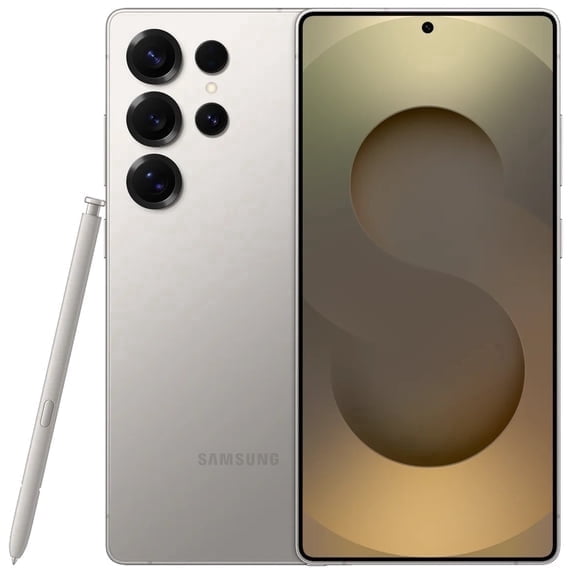
Hardware is only as good as the phone wrapped around it, and the Samsung Galaxy S25 Ultra is currently the poster child for what this chip can do. Paired with a beefy vapor chamber cooling system, it sustains peak performance loads twice as long as last year's models.
Memory bandwidth has also caught up, utilizing faster LPDDR5X RAM standards to feed the massive on-device AI models. Whether you are running local large language models through Ollama or generating real-time image edits, the Neural Processing Unit handles it locally without hammering your battery.
Xiaomi 15 Pro

Over in international markets, the Xiaomi 15 Pro is pushing the thermal limits of the Snapdragon 8 Elite even further. By combining aggressive software tuning with custom camera coprocessors, it proves that raw power does not automatically mean a dead battery by lunchtime.
Have you noticed your current phone lagging during routine tasks, or are you holding out for the next generation of mobile silicon? Let us know your upgrade timeline in the comments below.
How to Unlock Hidden Performance and Optimize Your Snapdragon 8 Elite Phone
What You Need Before Starting: A newly acquired Snapdragon 8 Elite smartphone, an active Wi-Fi connection, and about 10 minutes of your time.
- Step 1: Enable Developer Options — Open your phone Settings, go to About Phone, tap Software Information, and tap Build Number seven times until the developer prompt appears.
- Step 2: Adjust Window Animation Scales — Go back to the main Settings menu, open Developer Options, scroll down to Window animation scale, Transition animation scale, and Animator duration scale, and change all three from 1x to 0.5x for instant UI snappiness.
- Step 3: Configure Game Turbo Settings — Open your phone's native gaming launcher app (Game Space or Game Turbo), select your favorite demanding games, and switch the profile from Balance mode to Performance mode to disable aggressive thermal throttling.
- Step 4: Optimize Variable Refresh Rate — Navigate to Settings > Display > Smooth Motion, and ensure your screen is set to High or Adaptive 120Hz to make full use of the Adreno GPU rendering pipeline.
- Step 5: Verify Thermal Performance — Download CPU-Z or Geekbench 6 from the app store, run a quick benchmark test, and verify that your multi-core scores land around the 9,500 to 10,000 range without unexpected shutdowns.
Troubleshooting: What If Something Goes Wrong?
PROBLEM 1: The phone gets surprisingly hot during initial setup and data transfer.
THE FIX: This is completely normal during the first 24 hours as background apps index files, sync cloud data, and download security patches. Let the phone sit idle on a flat surface for 30 minutes with Wi-Fi connected to let background indexing finish.
PROBLEM 2: Games are locked at 60 FPS despite the display supporting 120Hz.
THE FIX: Open your phone's Game Turbo utility, tap individual game settings, and look for a toggle labeled 'Uncap Framerate' or 'Max Refresh Rate' which overrides default developer locks.
PROBLEM 3: High battery drain when using local AI features and camera tools.
THE FIX: Go to Settings > Battery > Background Usage Limits, and put unused apps into Deep Sleep. Also, toggle off continuous background cloud syncing if you are utilizing heavy on-device machine learning models.
Original step-by-step tech guide & analysis by KejaniTech. Tried this guide or ran into a question? Drop a comment below!


Comments
Post a Comment