Why Claude Code Is Accidentally Leaking Passwords on GitHub
A silent oversight in how automated terminal command approvals are saved is dumping API keys and database logins into public repositories.

If you have been tinkering with Anthropic's new terminal-based coding agent, Claude Code, you might want to check your public GitHub repositories right now. Security researchers at Apiiro just dropped a rather uncomfortable finding: thousands of developers are accidentally leaking database credentials, API tokens, and root logins because of how the tool handles automated shell command approvals.
When you let an AI write and execute terminal commands on your machine, convenience can easily outpace caution. Here is a breakdown of why this leak happens, how to check if your codebase is exposed, and how to lock down your local configuration files before you push your next commit.
Apple MacBook Pro M3 Max

Claude Code relies heavily on local environment execution, often running on high-powered developer laptops like the Apple MacBook Pro M3 Max. When the assistant needs to run a build script, test suite, or database migration, it prompts you in the terminal to grant permission.
To save you from hitting 'Y' twenty times an hour, the interface offers an option that says something along the lines of 'Yes, and don't ask again.' While that sounds like a great quality-of-life feature for rapid coding sessions, it creates a paper trail on your local storage that you might not actually want to share with the rest of the world.
GitHub Enterprise Server and Desktop App
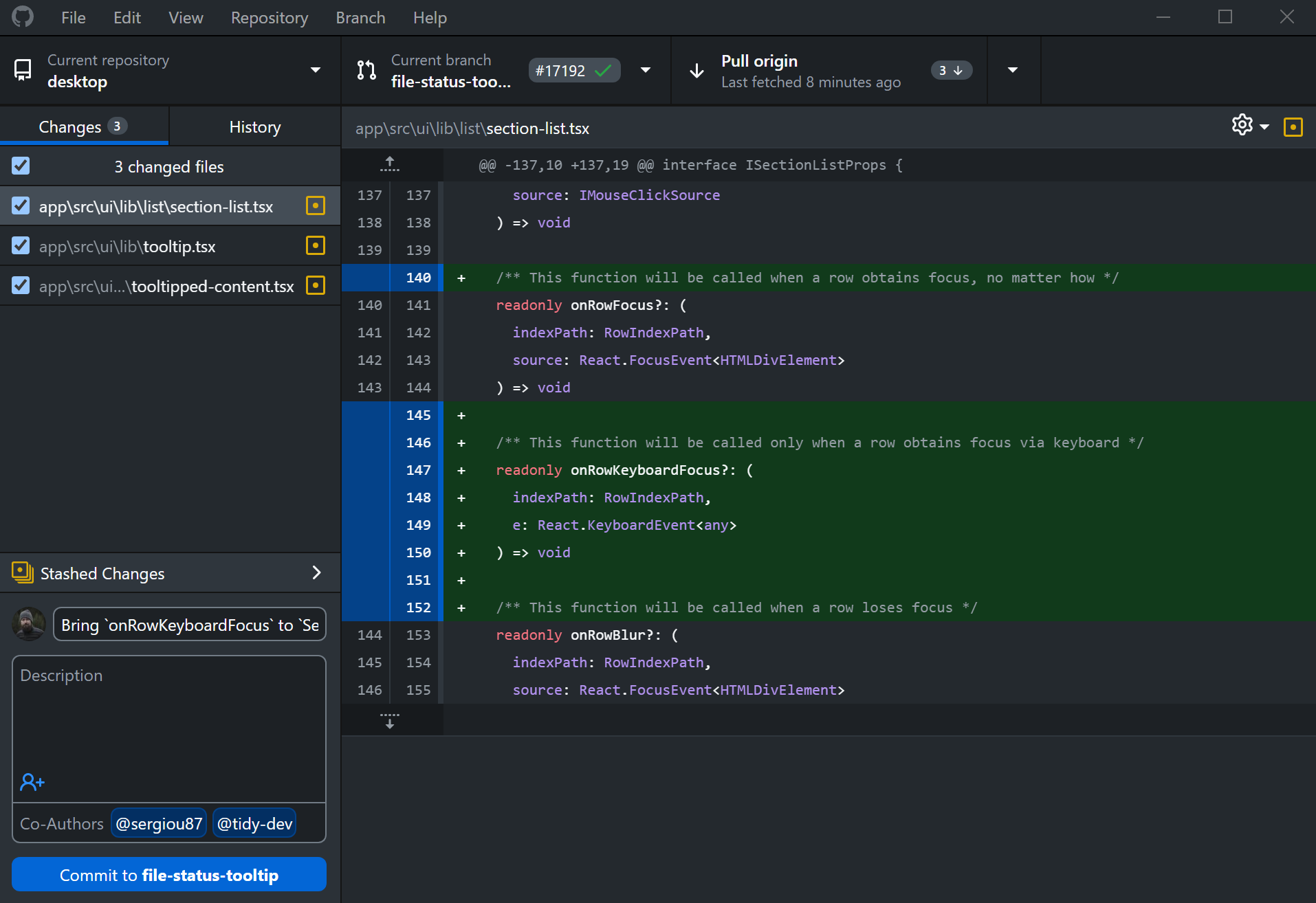
The core of the issue lives inside a hidden local directory named .claude/settings.local.json. When you choose to remember command approvals, Claude Code saves those rules as regex patterns or exact command strings inside this file.
The trouble starts when a command contains hardcoded secrets—like an AWS key, a database connection string with a raw password, or an authentication token passed as a CLI flag. If your global .gitignore file does not explicitly exclude this local settings file, your next git push sends those plaintext secrets straight up to GitHub for anyone to harvest.
Corsair K95 Mechanical Keyboard

Preventing this kind of credential exposure requires a bit of discipline at the command line. Before you type your next commit message using your favorite mechanical keyboard, you need to verify that local AI settings files are safely tucked away from your staging area.
Let us walk through how to audit your repository, clean up existing leaks if you already pushed them, and update your global ignore rules so it never happens again.
How to Audit Your Repo and Secure Claude Code Settings
What You Need Before Starting: A computer with Git installed, terminal access, and text editor.
- Step 1: Check your repository status — Open your terminal, navigate to your project folder, and run 'git status' to see if any files inside the .claude directory are tracked.
- Step 2: Update your global gitignore — Open your global ignore file by running 'nano ~/.gitignore' and add the line '.claude/' to ensure these local files are never tracked across any project.
- Step 3: Remove tracked settings files — If .claude/settings.local.json is already tracked by git, remove it from staging without deleting it locally by running 'git rm --cached .claude/settings.local.json'.
- Step 4: Rotate any exposed secrets — If you have already pushed a commit containing this file to public GitHub, immediately rotate any database passwords, API tokens, or keys found inside.
- Step 5: Verify your protections — Run 'git commit -m "Fix gitignore and remove local settings"' and push your changes to confirm the sensitive files are completely gone from the remote repository.
Troubleshooting: What If Something Goes Wrong?
PROBLEM 1: Git still tracks the .claude directory even after adding it to gitignore.
THE FIX: Git ignores untracked files, but if a file was already tracked in past commits, gitignore ignores changes to it, not the file itself. Run 'git rm -r --cached .claude/' to untrack the entire folder properly.
PROBLEM 2: You accidentally committed secrets in historical commits that remain in git history.
THE FIX: Removing the file in a new commit does not erase it from past commit history. Use a tool like BFG Repo-Cleaner or 'git filter-repo' to completely scrub the sensitive file from your entire commit history before making the repository public again.
PROBLEM 3: Claude Code stops working or throws errors after deleting the local settings file.
THE FIX: Deleting the local settings file simply resets your command permissions. The next time you run a command, Claude Code will ask for your approval again and generate a fresh, clean settings file.
Original step-by-step tech guide & analysis by KejaniTech. Tried this guide or ran into a question? Drop a comment below!


Comments
Post a Comment