Turn Your Idle Desktop GPU Into a Local AI Server for the Whole House
Stop letting your expensive graphics card sit idle all day when it can run a private, local LLM for your entire household.
If you spent good money on a dedicated graphics card for your gaming rig, chances are it spends about eighty percent of its day sitting in a dark case doing absolutely nothing. It waits quietly until you launch a title or fire up a video editor, sipping idle power.
We are going to change that today by turning that heavy-duty piece of silicon into a local, self-hosted AI server using Ollama and Open WebUI. Your entire household will be able to query a private language model directly from their phones and laptops without a single byte of data leaving your local network.
Nvidia RTX 4085 Super GPU
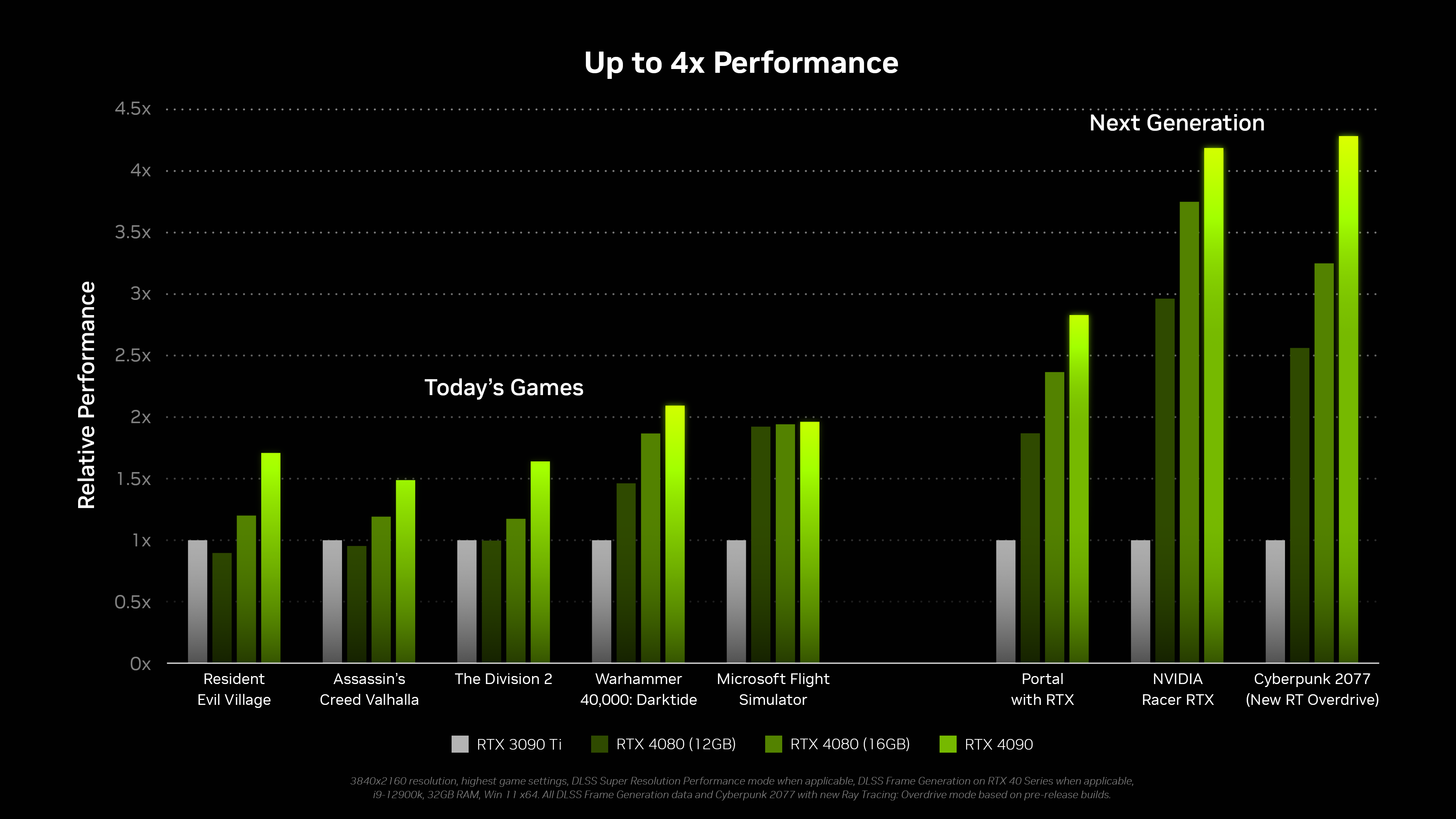
The secret sauce here is Video RAM, commonly known as VRAM. Running an LLM locally requires enough VRAM to hold model weights entirely in memory so inference happens at usable speeds. If you have an Nvidia card with 12GB or more of VRAM, you are in prime territory.
While AMD cards work through ROCm, Nvidia remains the path of least resistance because of native CUDA support across almost all local AI tooling. Your GPU's Tensor Cores will chew through token generation effortlessly while your CPU handles background tasks.
Ollama Backend Engine

Ollama is essentially the Docker of large language models. It handles downloading, loading, and serving models like Llama 3 or Mistral directly through a clean command-line interface and local API.
By running Ollama as a background service on your main rig, you expose port 11434 to your local network. This allows any device connected to your Wi-Fi router to talk directly to your desktop's GPU without exposing your setup to the open internet.
Open WebUI Docker Container
Nobody in your house wants to use a terminal command to ask an AI a question. That is where Open WebUI comes in, giving you a slick, browser-based chat window that looks identical to commercial cloud alternatives.
You can host Open WebUI locally on the same PC or a home server, pointing it directly at your Ollama instance. It supports multi-user management, chat history, and document uploads so family members can query PDFs privately.
How to Turn Your Gaming PC Into a Local AI Server
What You Need Before Starting: A Windows or Linux PC with an Nvidia GPU (12GB+ VRAM recommended), Docker Desktop installed, and Ollama for Windows/Linux.
- Step 1: Download and install Ollama from ollama.com on your host PC, ensuring the installation runs with GPU support enabled.
- Step 2: Open your terminal or command prompt and pull your first model by running 'ollama run llama3' to verify hardware acceleration works.
- Step 3: Configure Ollama to accept local network connections by setting the environment variable OLLAMA_HOST=0.0.0.0:11434 in your system settings.
- Step 4: Fire up Docker Desktop and launch Open WebUI using the official Docker run command, linking it to your host's Ollama port.
- Step 5: Open your web browser on any device on your home network, navigate to localhost:3000 (or your PC's local IP), and test chatting with your new private AI.
Troubleshooting: What If Something Goes Wrong?
PROBLEM 1: Other devices on your home network cannot connect to Ollama or Open WebUI.
THE FIX: Check your Windows Firewall settings and create an inbound rule allowing TCP traffic on port 11434 and port 3000.
PROBLEM 2: Token generation is painfully slow, running entirely on the CPU instead of the GPU.
THE FIX: Ensure you have the latest Nvidia CUDA toolkit and drivers installed, and verify Ollama is detecting your GPU in the terminal logs upon startup.
PROBLEM 3: Encountering out-of-memory errors when loading larger 70B or 8B parameter models.
THE FIX: Switch to a smaller quantized model variant like Q4_K_M or reduce the context window size in your Ollama configuration settings.
Original step-by-step tech guide & analysis by KejaniTech. Tried this guide or ran into a question? Drop a comment below!


Comments
Post a Comment