Turn Any Old Android Phone Into a Dedicated Smart Car Dashboard
Breathe new life into that cracked-screen drawer phone by turning it into a wireless Android Auto or CarPlay dashboard for under $15.

We all have one sitting in a drawer. That old Samsung or Motorola with a slightly tired battery and a minor scratch on the frame, retired because its camera couldn't compete with newer flagships. Instead of letting it collect dust or trading it in for fifty cents, you can wire it into your car as a standalone infotainment display that rivals a brand-new aftermarket head unit.
By combining a few open-source companion apps with a sturdy magnetic mount and a dedicated task automation loop, you get real-time navigation, media controls, and OBD2 diagnostics without spending hundreds of dollars replacing your factory dash.
Samsung Galaxy S9 Smartphone

The core requirement for a DIY smart dash is a phone with a crisp OLED or high-nit LCD screen, reliable Bluetooth, and a functioning USB-C port. Older flagship devices like the Galaxy S series or Google Pixel lineup work best because their processors handle background GPS tracking and streaming apps smoothly without thermal throttling.
You will want to strip the phone down to bare essentials: remove all personal accounts, disable location sharing for non-essential apps, and clear out storage so the processor focuses entirely on navigation and audio streaming.
Headunit Reloaded Emulator App
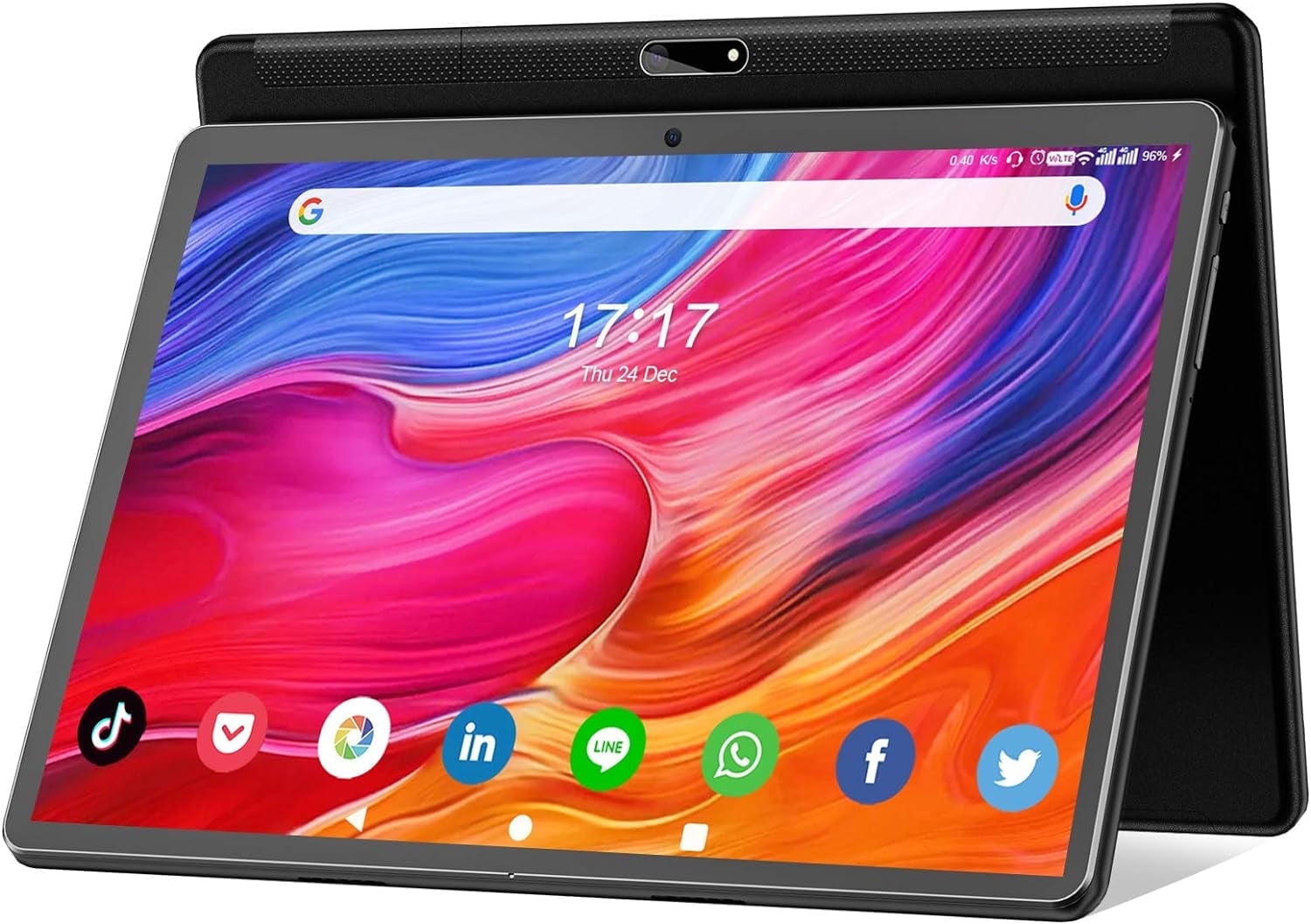
The secret sauce to making this project work is an app called Headunit Reloaded by Emil Borconi. It turns any Android device into an Android Auto receiver. When paired with a USB dongle or Wi-Fi bridge plugged into your phone's main hotspot, your dashboard phone mirrors your daily driver seamlessly.
It captures touch inputs from the screen, routes audio through your car stereo via auxiliary cable or Bluetooth, and launches your favorite maps and music applications the moment you turn the ignition key.
Anker Magnetic Wireless Charger Mount

Power management is the single biggest hurdle in custom dashboard builds. Leaving a phone plugged into a cheap cigarette lighter adapter while running maximum screen brightness and GPS will cause it to overheat and shut down within an hour.
Investing in a proper magnetic wireless charger mount ensures the phone stays cool, maintains 100 percent battery during long road trips, and can be easily snapped off and tucked away into the glovebox when you park in public spaces.
How to Build and Install Your DIY Smart Car Dashboard
What You Need Before Starting: An old Android phone (Android 8.0 or newer), a magnetic dashboard mount, a fast USB-C car charger, Headunit Reloaded app, and Macrodroid or Tasker.
- Step 1: Factory reset your old Android phone to clear cache, remove personal bloatware, and ensure maximum available RAM.
- Step 2: Connect the phone to your home Wi-Fi and download Headunit Reloaded from the Google Play Store along with your preferred navigation apps.
- Step 3: Install Tasker or MacroDroid and set up a basic automation rule: when the phone connects to your car's permanent Bluetooth audio, automatically turn on Wi-Fi hotspot and set screen brightness to 100 percent.
- Step 4: Mount your magnetic charger securely to the dash or center console, routing the power cable cleanly behind trim panels down to your 12V socket.
- Step 5: Launch Headunit Reloaded, connect your daily phone via wireless Android Auto or USB bridge, and test audio routing, microphone input, and GPS lock.
Troubleshooting: What If Something Goes Wrong?
PROBLEM 1: The dashboard phone overheats and shuts down during long afternoon drives under direct sunlight.
THE FIX: Disable background app syncing, drop screen brightness from automatic 100% to a fixed 80%, and remove any heavy protective phone case that traps thermal energy against the battery.
PROBLEM 2: Headunit Reloaded fails to establish a wireless connection with your primary phone.
THE FIX: Forget all existing Bluetooth and Wi-Fi pairings on both devices, clear the cache inside the Android Auto settings menu on your main phone, and ensure both devices are connected to the same local Wi-Fi tether network.
PROBLEM 3: The screen stays turned on and drains your car battery after you turn off the engine.
THE FIX: Configure MacroDroid or Tasker to monitor power state: create a reverse trigger that forces the screen to sleep and shuts down Wi-Fi hotspots 30 seconds after external USB power is cut.
Original step-by-step tech guide & analysis by KejaniTech. Tried this guide or ran into a question? Drop a comment below!


Comments
Post a Comment