Stop Ads and Trackers Everywhere by Setting Up NextDNS on Your Router and Phone
Clean up your digital life with encrypted DNS-over-HTTPS, custom blocklists, and system-wide privacy.

If you are still letting your internet service provider handle your Domain Name System lookups, you are basically asking for an endless parade of tracking scripts, telemetry pings, and intrusive banner ads on every device you own. Sure, uBlock Origin works wonders on your desktop browser, but it completely leaves your smart TV, your phone apps, and your guest network hanging out to dry.
By swapping out your default DNS servers for a cloud-filtered, encrypted provider like NextDNS or AdGuard DNS, you filter out junk traffic before it ever touches your hardware, speeding up page loads and keeping your browsing habits out of data broker spreadsheets.
Raspberry Pi 5 Network Appliance

When setting up network-wide filtering, your first line of defense is your router. Most consumer routers let you plug in custom IPv4 and IPv6 addresses for primary and secondary DNS. However, basic DNS requests are sent in plain text, meaning your ISP or local coffee shop Wi-Fi operator can read every single domain name you look up.
This is where encrypted DNS protocols like DNS-over-HTTPS (DoH) and DNS-over-TLS (DoT) come in. They wrap your lookup requests in standard TLS encryption, making your traffic look like ordinary HTTPS web browsing. To handle this at home, you configure your router or use dedicated gateway software to route requests securely to your cloud filtering profile.
ASUS RT-AX88U Pro Router
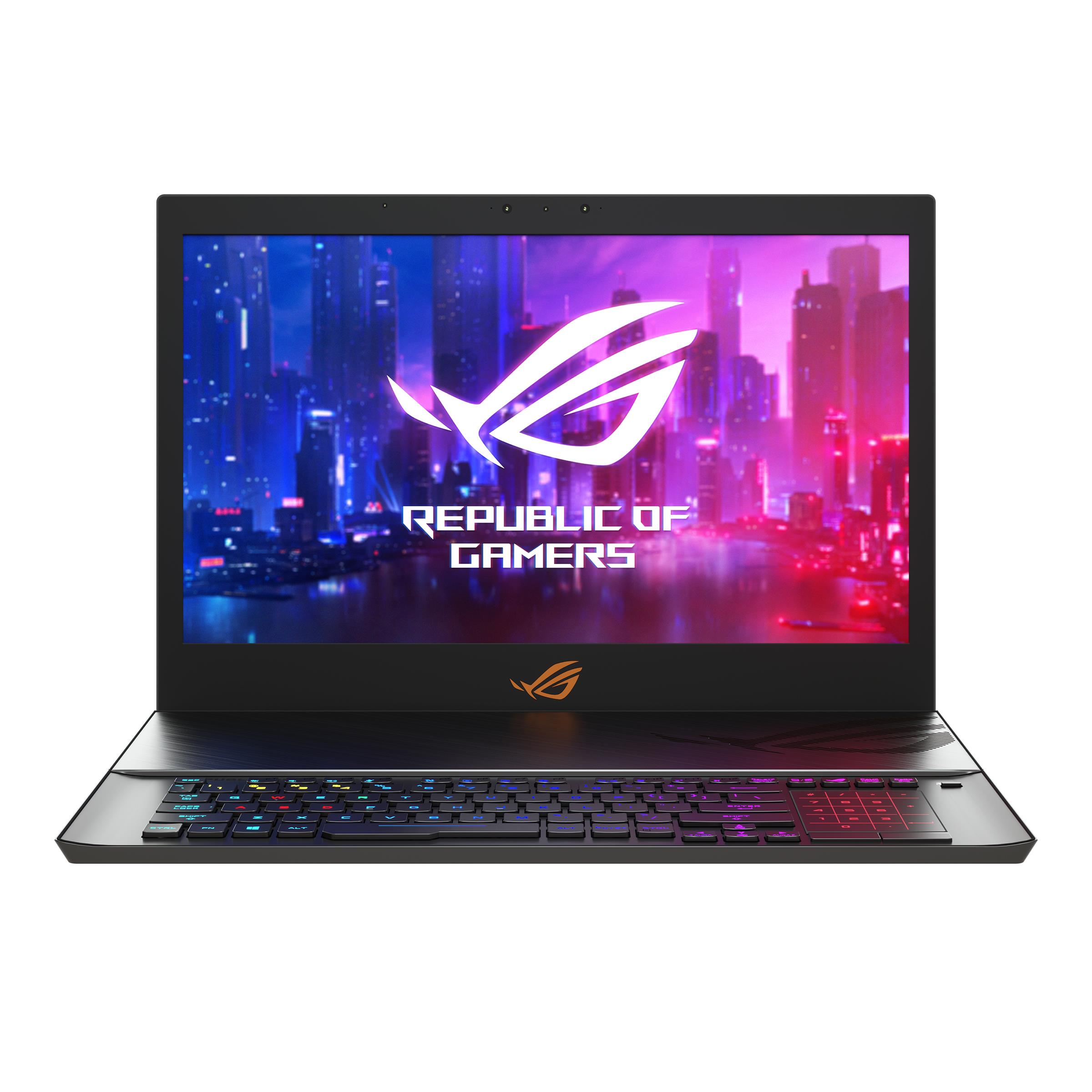
The real magic of moving to a service like NextDNS happens in the rule engine. Unlike a static Pi-hole installation that requires local maintenance and manual blocklist updates, cloud-based DNS filters let you toggle security feeds with a single click. You can block known malware domains, strip out adult content for kids' devices, and crush ad-serving telemetry from smart home appliances.
Because the filtering happens at the DNS level, apps on your phone that normally bypass standard browser extensions suddenly stop hammering analytics servers. Telemetry data vanishes before the connection even opens, which often translates to snappier mobile app performance and noticeably better battery life on portable devices.
Google Pixel 9 Pro Smartphone
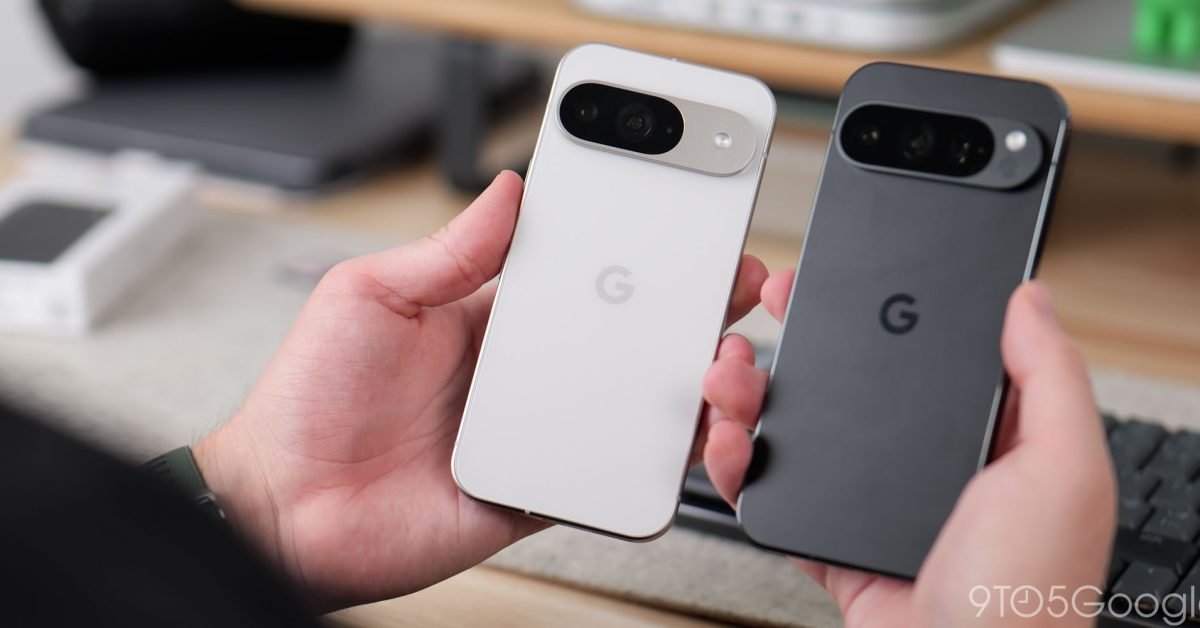
Configuring your home router is only half the battle because your devices leave the house. When you take your laptop to a café or your phone on a road trip, your router's local DNS settings no longer apply. Modern mobile and desktop operating systems have built-in support for Private DNS profiles.
By pointing your phone's Private DNS setting directly to your personalized DoH endpoint URL or ID, your traffic remains filtered and encrypted no matter what cell tower or public Wi-Fi network you latch onto. Setting this up takes less than two minutes per device, locking down your privacy whether you are sitting on your couch or walking through an airport.
How to Configure NextDNS Across Your Entire Home Network and Mobile Devices
What You Need Before Starting: A free NextDNS account, admin access to your home Wi-Fi router, and your mobile devices.
- Step 1: Create your profile — Go to the NextDNS website, sign up for a free account, and note down your unique 6-character Configuration ID from the setup tab.
- Step 2: Configure your router — Log into your home router's web admin panel, navigate to the WAN or Internet connection settings, and replace the default ISP DNS addresses with your NextDNS IPv4 and IPv6 addresses.
- Step 3: Enable encryption on your router — If your router supports DNS-over-HTTPS or running NextDNS CLI client, install the official CLI daemon via SSH for automatic client identification and granular logging.
- Step 4: Set up mobile Private DNS — On your Android device, go to Settings, Network & internet, Private DNS, select 'Private DNS provider hostname', and enter your unique NextDNS DoH hostname string.
- Step 5: Test and verify your setup — Visit the NextDNS test page in a browser to confirm that your traffic is successfully routing through your profile and that ad-blocking lists are active.
Troubleshooting: What If Something Goes Wrong?
PROBLEM 1: Smart home devices or local network printers stop working after changing router DNS.
THE FIX: Many IoT devices hardcode public DNS servers like 8.8.8.8 or try to use local mDNS resolution. Create a firewall rule on your router to intercept and redirect port 53 traffic back to your local gateway, or whitelist specific local IP addresses in your NextDNS settings.
PROBLEM 2: Captive portals on public Wi-Fi refuse to load on your phone after enabling Private DNS.
THE FIX: Temporary captive portal landing pages require unencrypted HTTP redirection to function. Temporarily turn off Private DNS in your mobile settings when connecting to hotel or airport Wi-Fi, then toggle it back on once you complete the sign-in prompt.
PROBLEM 3: NextDNS logs show all local network traffic originating from a single router IP address.
THE FIX: This happens when your router is acting as a simple DNS forwarder without preserving client IPs. Install the NextDNS CLI tool directly on your router or enable EDNS Client Subnet (ECS) forwarding in your router DNS settings to see individual device names in your logs.
Original step-by-step tech guide & analysis by KejaniTech. Tried this guide or ran into a question? Drop a comment below!


Comments
Post a Comment