Sony Is Killing the PlayStation Plus PC App: How to Keep Streaming Your Games
With less than 0.4% of Premium subscribers using the desktop app, Sony is pulling the plug on December 10th.
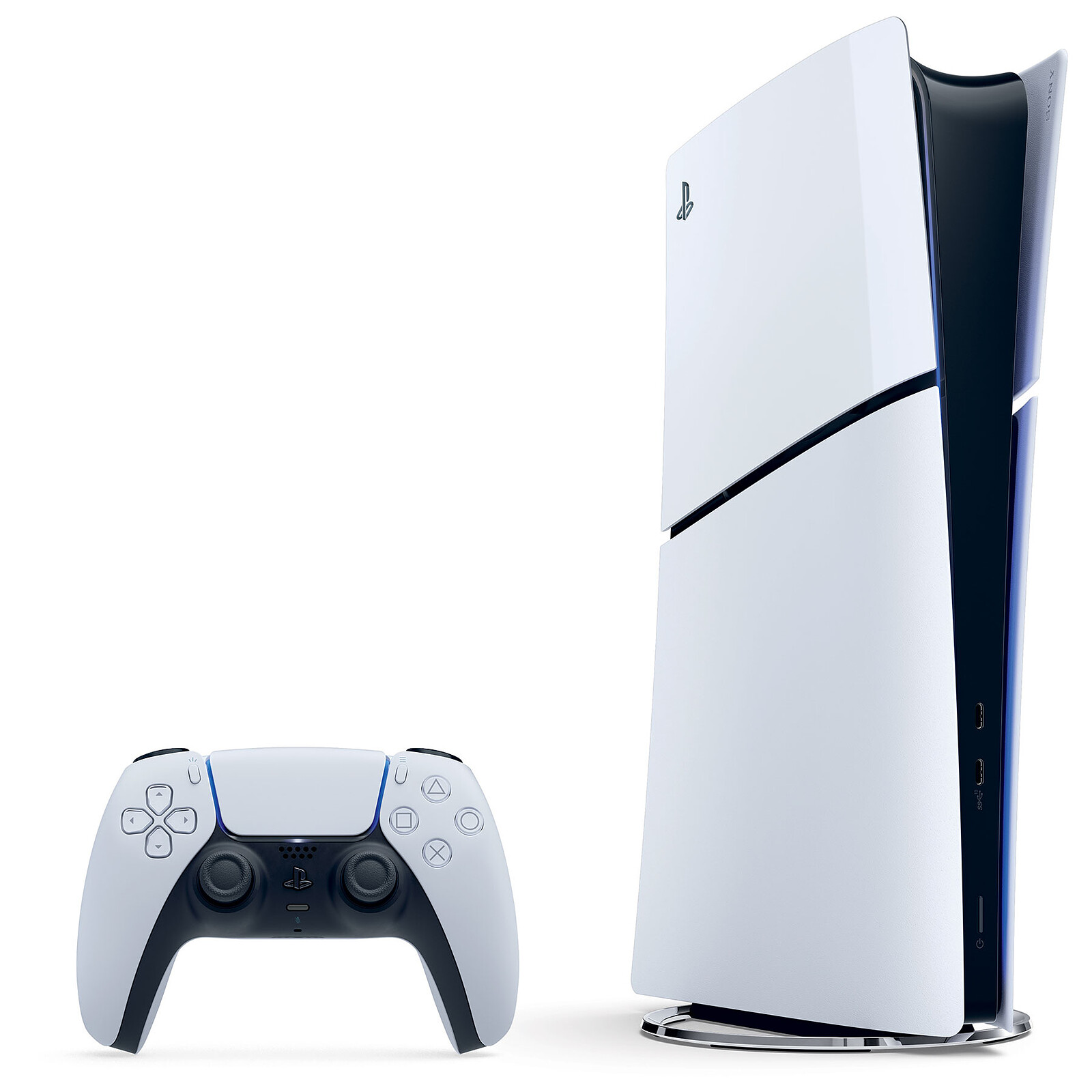
Sony just dropped a quiet announcement that will disappoint a tiny fraction of desktop gamers: the PlayStation Plus PC app is officially shutting down on December 10th. According to Sony, less than 0.4% of PlayStation Plus Premium subscribers ever opened the desktop app to stream console titles.
While the user count is low, the death of this app leaves PC players without an official cloud channel to stream catalog games directly from Sony servers. Fortunately, if you still want to stream your PlayStation games to a laptop or desktop rig without buying a second console, open-source tools and local streaming offer far better performance anyway.
Why Sony Is Abandoning Desktop Cloud Streaming

The writing has been on the wall for the PlayStation Plus PC app for years. Originally built on the bones of PlayStation Now, the application lacked basic modern features like native DualSense haptic feedback over Bluetooth, ultrawide monitor scaling, and reliable 4K video streams.
Maintaining dedicated server clusters specifically tailored for streaming PS4 and PS3 titles to Windows PCs requires significant overhead. By cutting loose the 0.4% of users using the desktop app, Sony is consolidating its engineering resources around its primary hardware ecosystem, native PC ports on Steam, and its handheld Portal device.
What Happens to Your Saves and Subscription Tiers

If you have been playing games through the PC app, your save data is stored in the PlayStation Network cloud, provided you have an active PlayStation Plus subscription. However, accessing those saves will now require either a physical PS4, PS5, or an active local Remote Play bridge.
Your PS Plus Premium tier will not drop in price automatically despite losing this feature. If you only subscribed to Premium for PC cloud access, you should downgrade your plan to Extra or Essential through your account settings before your next billing cycle hits.
Ditching Cloud Servers for Low-Latency Local Remote Play

While cloud streaming from Sony data centers is going away on PC, local console streaming via Remote Play remains fully supported. In fact, running a local stream from your own PS5 to your PC delivers vastly superior frame rates, lower input latency, and higher image quality than the retiring PC app ever provided.
Using open-source clients like Chiaki-ng, you can stream your PS5 at 1080p resolution and 60 frames per second over your home Wi-Fi network with minimal latency. It completely eliminates the reliance on remote server queues and region-locked cloud catalogs.
How to Set Up High-Performance PS5 Remote Play on PC
What You Need Before Starting: PlayStation 5 console, Windows 10/11 PC, DualSense controller, USB-C data cable, and Cat6 Ethernet cables.
- Step 1: Enable Remote Play on Console — On your PS5, go to Settings > System > Remote Play and switch the toggle for Enable Remote Play to the On position.
- Step 2: Configure Rest Mode Power Settings — Navigate to Settings > System > Power Saving > Features Available in Rest Mode. Turn on Stay Connected to the Internet and Enable Turning On PS5 from Network.
- Step 3: Download Chiaki-ng on PC — Visit the official GitHub repository for Chiaki-ng (the maintained fork of Chiaki), download the latest Windows zip release, and extract the folder to your PC.
- Step 4: Retrieve Your Encoded PSN Account ID — Open your web browser, log into your PlayStation account, navigate to your profile page, and copy your account ID string using an open-source PSN ID lookup script or browser developer tools.
- Step 5: Register the PS5 to Chiaki — Launch Chiaki-ng on your PC. It will automatically detect your PS5 on the local network. Click the console icon, paste your PSN Account ID, and trigger a pairing PIN on your console via Settings > System > Remote Play > Link Device. Enter the 8-digit PIN into Chiaki-ng and hit Register.
Troubleshooting: What If Something Goes Wrong?
PROBLEM 1: Chiaki-ng cannot wake the PS5 from Rest Mode over the local network.
THE FIX: Open your home router administration panel and assign a static LAN IP address to your PS5. Enable UPnP or manually forward UDP port 987 to your PS5 local IP address.
PROBLEM 2: The video stream suffers from heavy micro-stuttering and pixel artifacts.
THE FIX: Connect your PS5 directly to your router using a Cat6 Ethernet cable instead of 5GHz Wi-Fi. In Chiaki-ng video settings, set the codec to H.265/HEVC and cap the bit rate at 15,000 Kbps.
PROBLEM 3: DualSense controller haptics and rumble do not work over Bluetooth on Windows.
THE FIX: Windows does not natively support advanced DualSense audio-based haptics over standard Bluetooth. Plug the controller directly into your PC using a high-speed USB-C data cable.
Original step-by-step tech guide & analysis by KejaniTech. Tried this guide or ran into a question? Drop a comment below!


Comments
Post a Comment