Samsung Galaxy Buds Get Medical Clearance: What It Actually Means
FDA approval changes consumer earbuds into certified hearing assistance tools overnight.

Regulators in the US and South Korea just gave official medical clearance to Samsung Galaxy Buds, pushing consumer audio hardware straight into clinical territory. Instead of buying a thousand-dollar dedicated medical device, millions of users might soon have hearing assistance built directly into their daily pocket buds.
We are going to break down how this regulatory approval works under the hood, how to configure the new acoustic profile features on your own hardware, and what pitfalls to dodge.
Samsung Galaxy Buds

The core breakthrough here relies on advanced software processing pipelines built on top of the existing MEMS microphone arrays inside the earbuds. Rather than requiring specialized clinical tuning hardware, the companion app can now map user audiograms and dynamically amplify specific frequency bands in real-time.
Latency is the silent killer for any wearable hearing assistive tech. If audio processing lags by even 30 milliseconds, the brain detects an unnatural echo that ruins intelligibility in noisy environments.
Samsung Galaxy Smartphone

Processing the acoustic compensation curves requires a paired smartphone running One UI with the latest Galaxy Wearable plugin installed. The phone handles the heavy lifting of storing audiogram profiles and pushing customized EQ corrections directly to the earbud's internal DSP chip.
Cross-platform compatibility remains restricted here, meaning iPhone users missing out on the proprietary companion app ecosystem will not get the full medical-grade tuning experience.
USB-C Charging Case
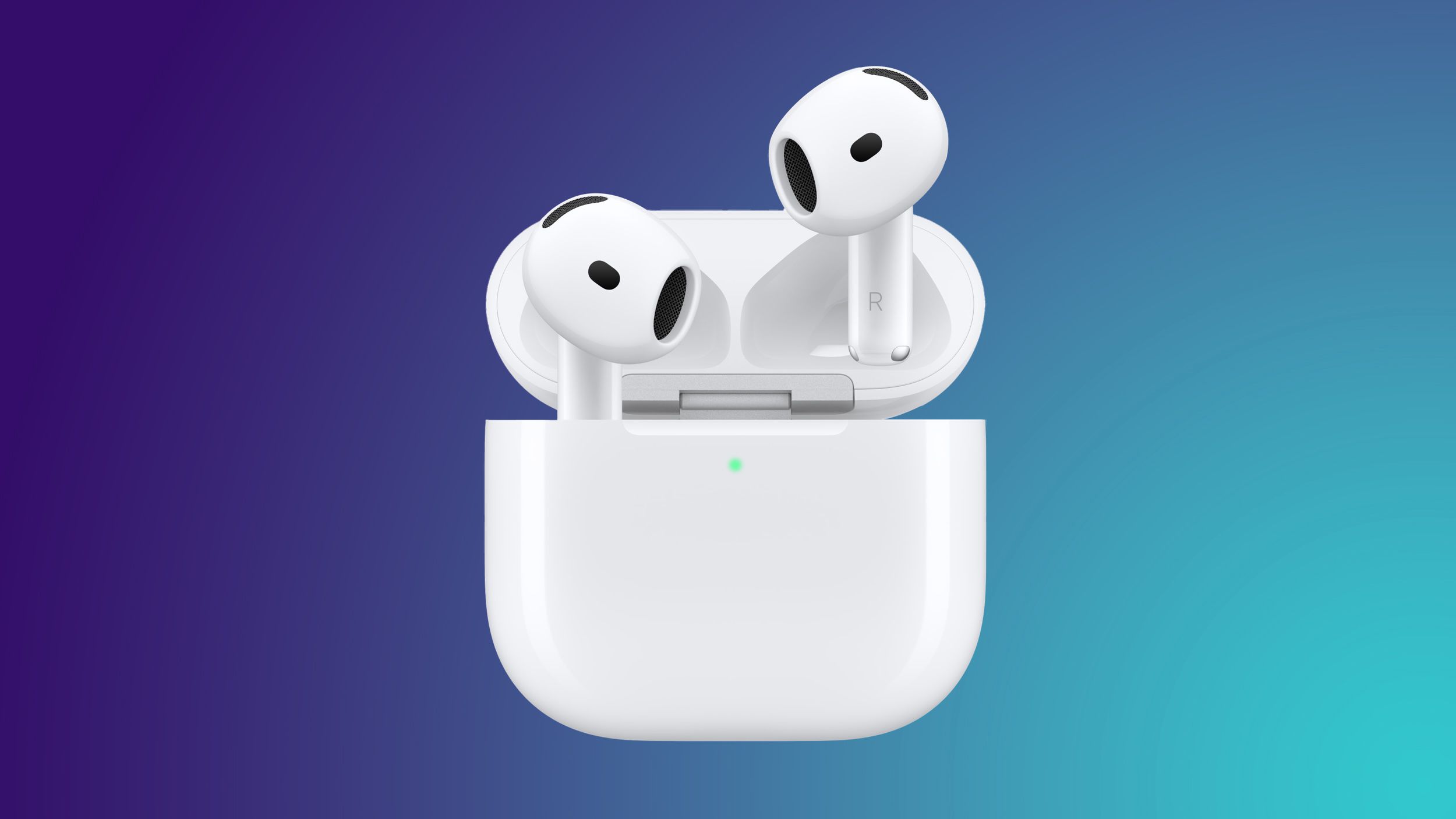
Battery longevity takes a notable hit when continuous hearing assistance algorithms run alongside active noise cancellation. The internal batteries in these compact housings have to work double-duty all day long.
If you plan to rely on these buds for clinical-level assistance throughout an entire workday, keeping the charging case handy for midday top-ups is non-negotiable.
How to Configure Clinical Hearing Assistance on Your Galaxy Buds
What You Need Before Starting: Supported Samsung Galaxy Buds, a Galaxy smartphone running One UI 6.0 or higher, and a quiet room for audiometric testing.
- Step 1: Update Software — Open the Galaxy Wearable app on your phone, navigate to Earbuds settings, and tap Earbud Software Update to ensure you are running the latest firmware.
- Step 2: Clean the Grills — Remove the silicone ear tips and carefully clean any earwax or debris out of the metal speaker mesh using a dry, soft-bristled toothbrush.
- Step 3: Run the Audiometric Test — Go to Settings > Accessibility > Hearing Enhancements > Adapt Sound, and select Personalize Sound to complete the guided tone-listening test.
- Step 4: Sync Profile — Apply the generated frequency compensation profile, which automatically writes the custom EQ curve to the onboard DSP memory of the earbuds.
- Step 5: Verify Ambient Amplification — Toggle on Ambient Sound in the widget, test speech clarity in a noisy environment, and adjust the amplification slider until conversation sounds crisp without static feedback.
Troubleshooting: What If Something Goes Wrong?
PROBLEM 1: Audio feedback or high-pitched squealing occurs when inserting the earbuds.
THE FIX: This happens when the microphone picks up output sound from the speaker due to a loose seal. Swap to a larger silicone tip size to ensure a tight, airtight fit in your ear canal.
PROBLEM 2: The custom hearing profile fails to sync to the earbuds from the phone app.
THE FIX: Unpair the earbuds completely from your phone's Bluetooth settings, restart your phone, place both buds in the charging case for 10 seconds, and reconnect them before running the test again.
PROBLEM 3: Battery drains in less than three hours with the feature enabled.
THE FIX: Continuous real-time ambient sound processing heavily taxes the processor. Disable active noise cancellation while using ambient amplification to double your listening runtime.
Original step-by-step tech guide & analysis by KejaniTech. Tried this guide or ran into a question? Drop a comment below!


Comments
Post a Comment