Lock Down Your Digital Life With Passkeys and Hardware Keys
A hands-on guide to securing your accounts against phishing, credential stuffing, and SIM-swap attacks.

Passwords are dying a slow, painful death, and honestly, good riddance. Reusing a 12-character string across five different services is practically an open invitation to hackers running automated credential stuffing bots.
We are going to lock down your entire digital footprint by ditching passwords where possible, adopting cryptographic passkeys, anchoring your accounts to a physical hardware security key, and locking your mobile carrier account so nobody can hijack your phone number.
YubiKey 5 Series Security Keys

Hardware security keys are the gold standard of modern cybersecurity because they rely on public-key cryptography. When you register a key like the YubiKey 5 NFC with a service like Bitwarden, GitHub, or Google, the website stores a public key, while your hardware key keeps the private key safely locked inside a secure element chip that cannot be exported or phished.
Even if you accidentally land on a convincing phishing site that mimics your bank, the browser checks the exact domain name. If it does not match, your hardware key refuses to sign the authentication challenge. You need at least two physical keys: a primary one you keep on your keychain and a backup key stored securely at home.
Bitwarden Password Manager

While passkeys are taking over, you will still encounter legacy websites that demand traditional passwords. Storing them in a browser's built-in keychain is convenient, but using a dedicated open-source vault like Bitwarden gives you cross-platform reliability and advanced sharing controls.
Your master password should be a high-entropy passphrase consisting of four or five random words. Pair this vault with a FIDO2 WebAuthn login method so that unlocking your password manager requires a physical tap on your hardware security key rather than just typing a secret phrase.
Apple iPhone 16 Pro
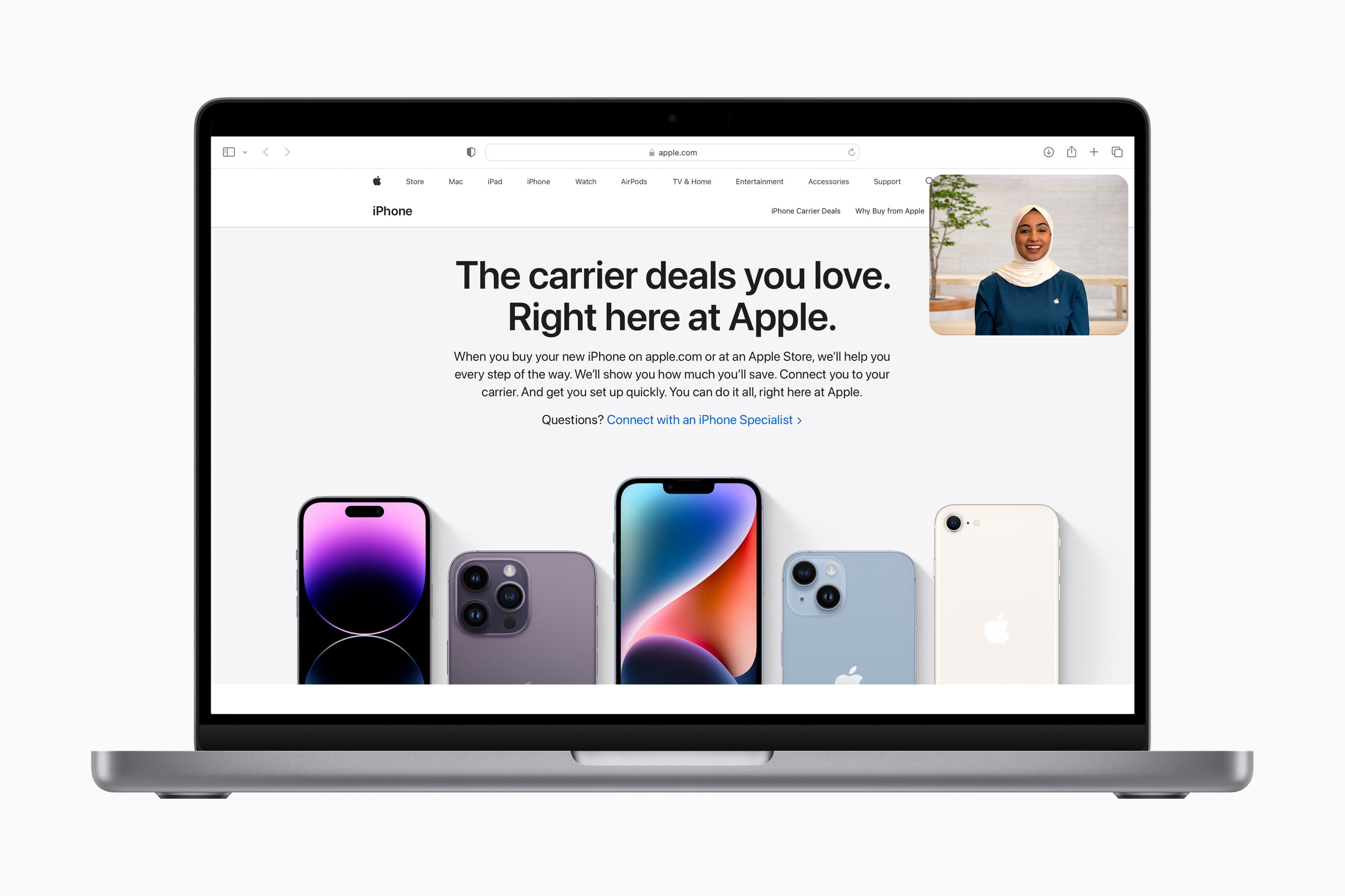
Your smartphone is the central hub for SMS verification codes and authenticator app tokens, which makes it the primary target for malicious actors trying to execute a SIM-swap attack. If a criminal convinces your cellular carrier to port your phone number to a new SIM card under their control, they can intercept every single text message password reset request.
To stop this cold, you must call your carrier customer support line and request a mandatory carrier PIN or verbal password on your account. Without that specific PIN, no representative is allowed to process a SIM swap or transfer your number to a new device.
How to Bulletproof Your Accounts With Passkeys and Keys
What You Need Before Starting: Two FIDO2-compatible security keys, a reputable password manager, and your cellular carrier account details.
- Step 1: Set a Carrier PIN — Call your mobile provider customer service and add a strict security PIN to prevent unauthorized SIM card swaps.
- Step 2: Register Your Primary YubiKey — Log into your critical accounts (Google, Apple, Bitwarden, GitHub) and navigate to security settings to add a FIDO2 security key.
- Step 3: Add Your Backup Key — Immediately register your second hardware security key to the same accounts so you are never locked out if your keychain key is lost.
- Step 4: Migrate to Passkeys — Replace traditional passwords with native passkeys wherever supported, saving them directly to your password manager or hardware key.
- Step 5: Test Your Recovery Flow — Log out of your primary browser session and test logging back in using only your hardware key and backup codes to ensure everything functions properly.
Troubleshooting: What If Something Goes Wrong?
PROBLEM 1: The website claims my security key is not recognized or unsupported.
THE FIX: Ensure you are using a modern browser like Chrome, Firefox, or Safari that fully supports WebAuthn, and make sure your key is plugged directly into a USB port rather than an unpowered cheap hub.
PROBLEM 2: I lost my primary YubiKey and cannot access my password manager vault.
THE FIX: Plug in your backup YubiKey, which you registered during setup. If you did not configure a backup key, use the emergency offline recovery code file you saved when you first created your vault.
PROBLEM 3: My mobile carrier customer support representative refuses to add a SIM PIN.
THE FIX: Escalate the call to a tier-2 technical support supervisor or visit a corporate-owned retail store in person with government-issued photo identification to enforce strict account security flags.
Original step-by-step tech guide & analysis by KejaniTech. Tried this guide or ran into a question? Drop a comment below!


Comments
Post a Comment