How to Fix Dead Wi-Fi Zones With Mesh Backhaul and Proper Channel Widths
Stop suffering through buffering by properly configuring your mesh nodes, wired backhaul, and 5GHz/6GHz radio bands.
We have all lived through it. You walk from your living room into the kitchen, your video call freezes, and your smart home devices drop offline like dominos. Throwing a random repeater into the hallway usually just cuts your available bandwidth in half and spikes your ping into the stratosphere.
Fixing stubborn dead zones takes a bit more than plugging in plastic boxes and praying. By configuring dedicated wired or wireless backhauls, cleaning up channel congestion, and tuning your channel widths, you can get rock-solid coverage across every square foot of your property.
ASUS ZenWiFi Pro ET12 mesh router
Most consumer mesh kits rely on dual-band or tri-band radios to communicate between the primary router and secondary satellite nodes. If you use a dual-band router, the nodes have to share the exact same wireless frequency to talk to each other and to your devices. That creates an invisible traffic jam.
Upgrading to a tri-band system—or utilizing a dedicated 5GHz or 6GHz band exclusively for node-to-node communication—frees up massive amounts of airtime. If your house has existing Category 6 cable drops, running a wired Ethernet backhaul completely bypasses wireless interference and delivers unadulterated multi-gigabit throughput to every node.
MoCA 2.5 Coax Adapter

Running brand-new Ethernet cables through finished drywall is messy, expensive, and generally a last resort. Luckily, most modern homes are wired with coaxial cables for cable television that often sit completely unused behind the walls.
By installing MoCA 2.5 adapters at both ends of a coax line, you can piggyback data signals directly over your existing TV wiring at speeds up to 2.5 Gbps. This gives you a rock-solid wired backhaul for your mesh nodes without drilling a single hole in your living room wall.
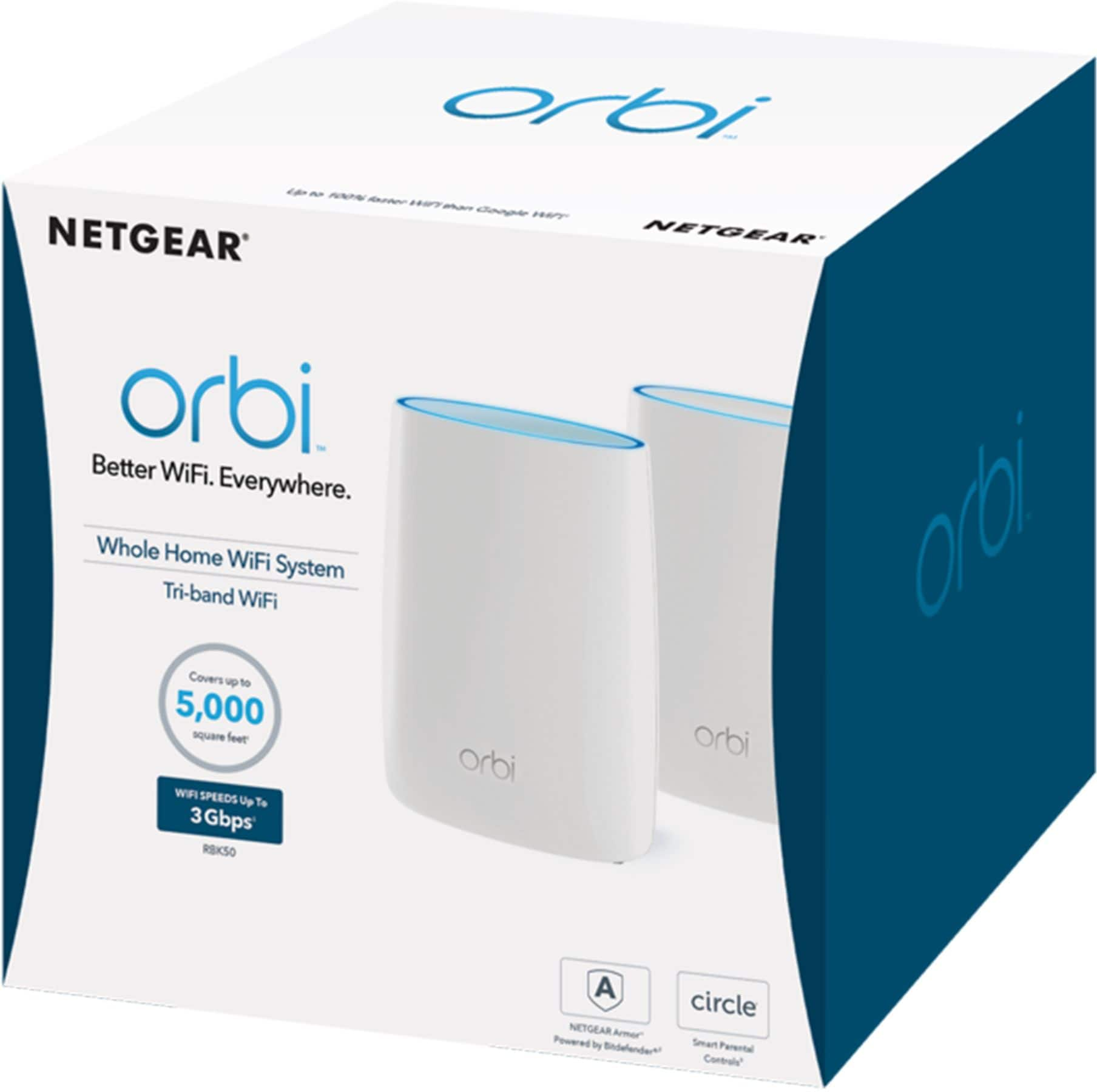
Netgear Orbi Wi-Fi 7 system
Channel width and DFS (Dynamic Frequency Selection) channels play a massive role in whether your Wi-Fi screams or crawls. On the 5GHz band, running a massive 80MHz or 160MHz channel width sounds great on paper, but if you live in a dense apartment building, your neighbors are likely stepping all over your radio waves.
Dropping down to a 40MHz channel width in congested areas often results in higher sustained speeds and drastically lower latency because the router spends less time dealing with packet retransmissions caused by co-channel interference.
How to Diagnose and Rebuild Your Home Mesh Network
What You Need Before Starting: Tri-band mesh router system, Ethernet cables or MoCA adapters, and a Wi-Fi analyzer smartphone app.
- Step 1: Map your home using a Wi-Fi scanner app like WiFiman to identify dead zones, high-interference areas, and channels currently flooded by your neighbors.
- Step 2: Position your primary router near the center of your home, away from thick concrete walls, large metal appliances, and microwave ovens.
- Step 3: Connect your satellite mesh nodes. If wireless, place them one room away from the main router rather than all the way out in the dead zone so they maintain a strong backhaul link.
- Step 4: Log into your router admin panel via web browser or mobile app, navigate to wireless settings, and set your 2.4GHz channel width to 20MHz and 5GHz to 80MHz to minimize interference.
- Step 5: Enable dedicated backhaul isolation or plug in physical Ethernet/MoCA cables between nodes, then run a speed test from your furthest room to verify stable throughput.
Troubleshooting: What If Something Goes Wrong?
PROBLEM 1: Satellite mesh node keeps dropping connection or turning red.
THE FIX: Move the satellite node closer to the main router. If using wireless backhaul, structural interference from brick or stone walls is likely too dense; switch to a MoCA or Ethernet wired backhaul.
PROBLEM 2: Smart home devices (like smart plugs and bulbs) refuse to connect to the new mesh network.
THE FIX: Many older Internet of Things gadgets only support 2.4GHz Wi-Fi and choke when 2.4GHz and 5GHz share a single SSID name. Temporarily disable the 5GHz band in your router settings during initial smart device setup, pair your gadgets, then re-enable 5GHz.
PROBLEM 3: Wi-Fi speeds drop significantly during evening hours across all devices.
THE FIX: Your router is likely auto-selecting congested channels shared by neighboring networks. Log into your router, run an RF channel scan, and manually select quiet non-overlapping channels (such as channels 36-48 on 5GHz).
Original step-by-step tech guide & analysis by KejaniTech. Tried this guide or ran into a question? Drop a comment below!


Comments
Post a Comment