Google Gemini Can Now Read Your Bank Statements: Here Is How It Works
Google's latest update lets you link Gemini directly to your checking and savings accounts for spending analysis.
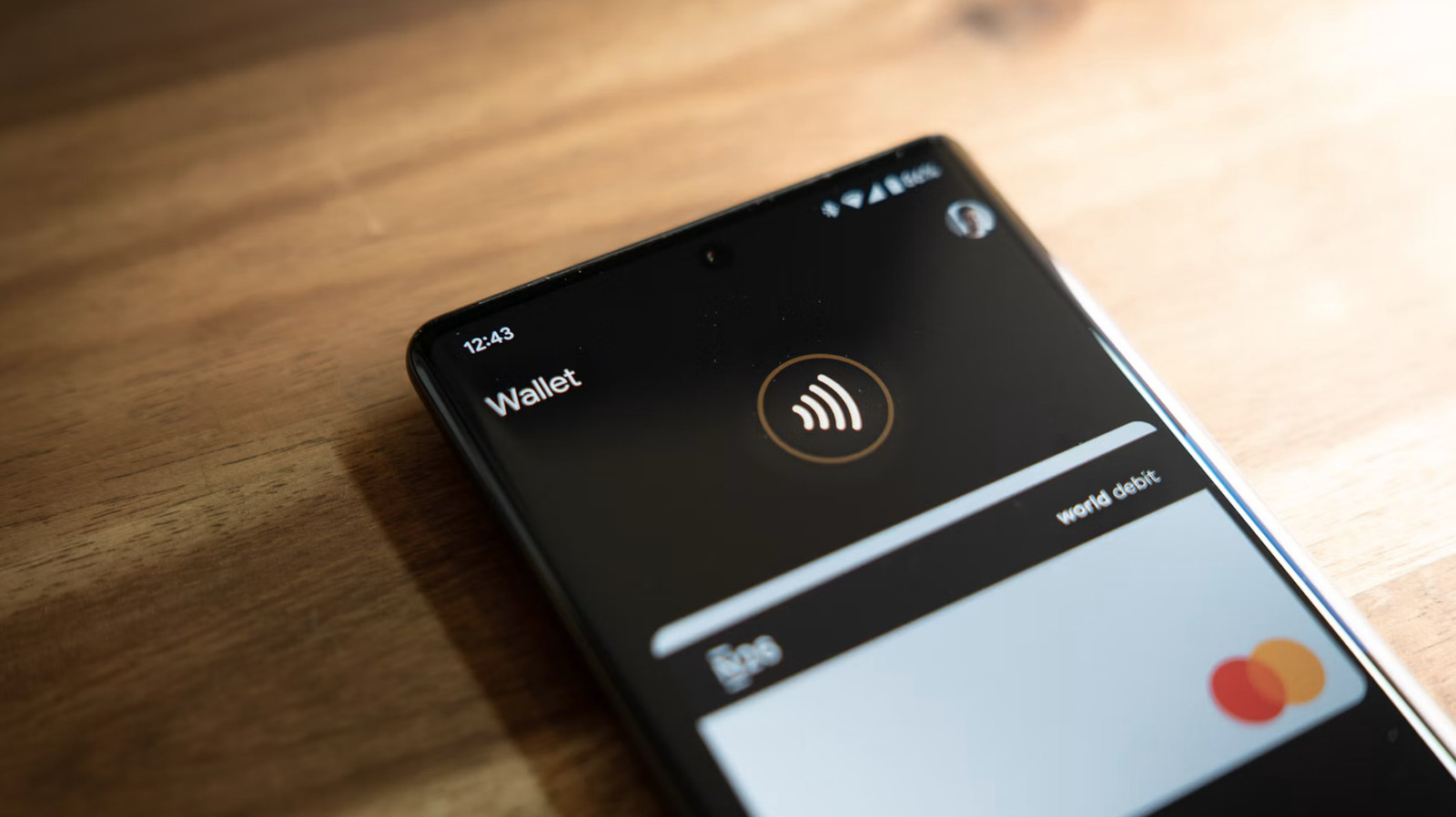
If you have ever wanted your AI assistant to stop guessing your monthly subscription budget and actually look at the damage, Google just gave Gemini the keys to the vault. You can now link your actual bank accounts directly to Gemini for deep spending analysis, automated categorization, and rough budget reviews.
Before you panic about data privacy or hand over your debit card PIN, let us break down what this feature actually does, how to set it up safely, and why you should configure your security permissions before letting any LLM audit your coffee habit.
Google Pixel 9 Pro

The integration leverages secure OAuth 2.0 connections and financial aggregators similar to what budgeting apps like Mint or YNAB use behind the scenes. Gemini does not get your raw account numbers or login credentials. Instead, it relies on tokenized access to read-only transaction histories.
This means the AI can parse through your last three months of grocery bills, utility payments, and mystery online shopping charges to give you plain-English breakdowns. Want to know exactly how much you spent on takeout last month? You can just ask the chat window instead of exporting CSV files to Google Sheets.
Google One AI Premium

Crucially, this feature is built strictly for analysis and reporting, not execution. Google explicitly notes that Gemini cannot initiate transfers, pay bills, or move money between accounts through this integration. It is purely read-only analytics.
That distinction is vital for peace of mind. If a prompt injection attack or an unexpected hallucination happens in your chat thread, the absolute worst thing the model can do is miscalculate your average monthly grocery spend. Your actual cash remains locked behind your bank security protocols.
Google Chrome Security Settings
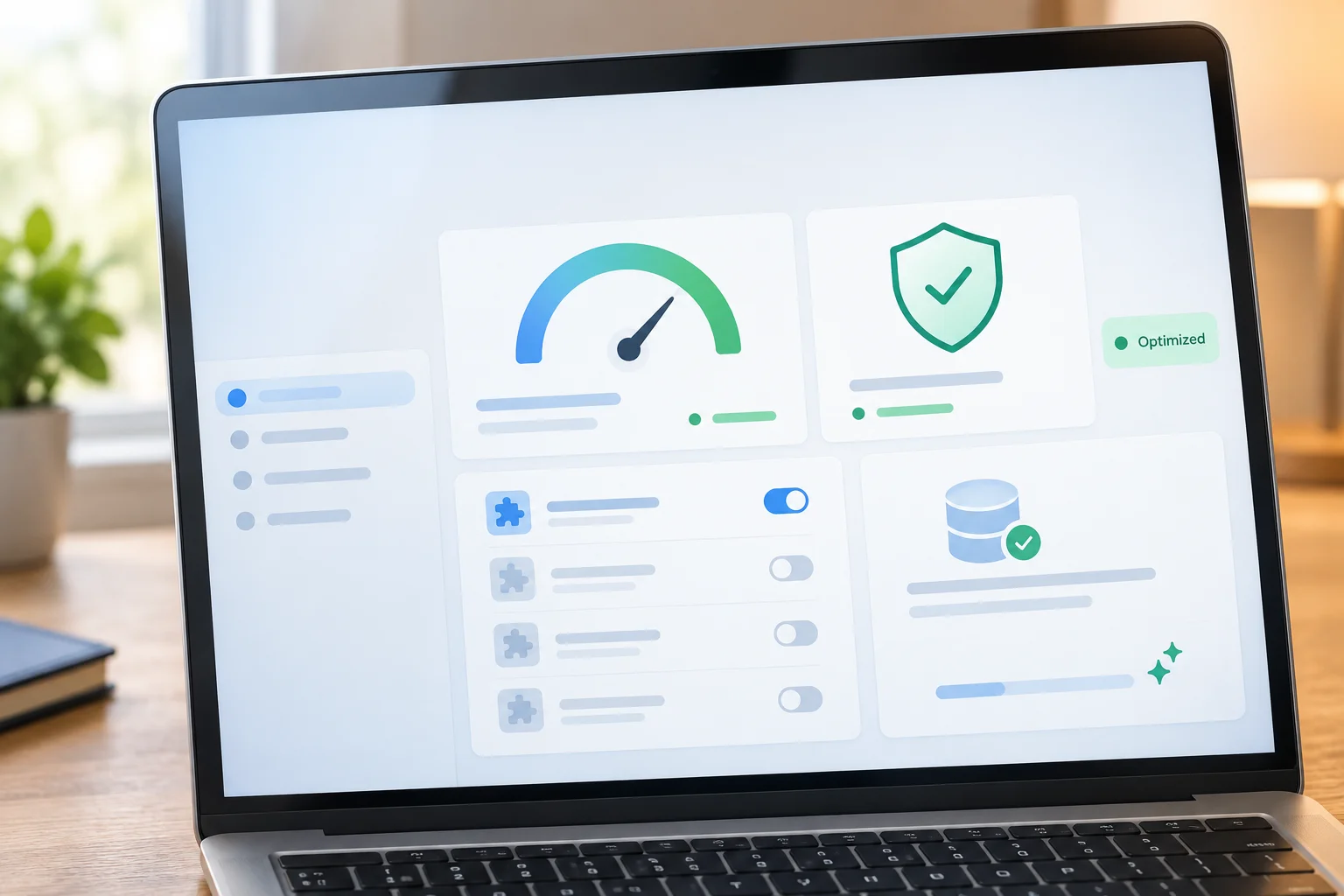
Setting up the feature requires diving into your Google Account extensions menu and granting specific permissions. You can connect multiple financial institutions depending on which banks support Plaid or direct OAuth handshakes with Google's ecosystem.
As we walk through the setup process below, pay close attention to data sharing toggles. Google gives you granular control over whether your transaction prompts are used to train future foundation models, and you will want to turn that training toggle off immediately.
How to Connect Gemini to Your Bank Account Safely
What You Need Before Starting: A Google Account, an active Gemini or Gemini Advanced subscription, your online banking login credentials, and your phone handy for two-factor authentication codes.
- Step 1: Open Gemini — Navigate to gemini.google.com on your desktop browser or open the Gemini app on your phone.
- Step 2: Access Extensions — Click on your profile icon in the top right corner, select Settings, and click on the Extensions tab.
- Step 3: Enable Financial Extension — Locate the new Banking and Finance extension toggle and flip it to the 'On' position.
- Step 4: Authenticate Your Bank — Select your specific financial institution from the supported list, which will launch a secure login window powered by your bank's OAuth gateway.
- Step 5: Verify Read-Only Permissions — Complete your bank's two-factor authentication challenge, review the permission screen to ensure it requests read-only transaction data, and click confirm to finish linking.
Troubleshooting: What If Something Goes Wrong?
PROBLEM 1: My bank is not listed in the available financial institutions menu during setup.
THE FIX: Google rolls out banking partners in waves. If your local credit union or regional bank is missing, check back in a few weeks or look for a manual CSV export workaround where you upload your monthly statement directly to the chat.
PROBLEM 2: Gemini gives an error stating it cannot read transaction descriptions because the data format is unsupported.
THE FIX: Disconnect the bank extension in your Gemini settings, clear your browser cache, and reconnect the account. Sometimes the initial OAuth token fails to sync full account metadata.
PROBLEM 3: I am worried about my financial data being used to train Google's future AI models.
THE FIX: Go to your Google Account Activity Controls, find Gemini Apps Activity, and uncheck the box that allows Google to use your interactions for product improvement and model training.
Original step-by-step tech guide & analysis by KejaniTech. Tried this guide or ran into a question? Drop a comment below!


Comments
Post a Comment