Fixing the Worst Linux Audio Bug: How to Route Bluetooth Le Audio Properly
Stop suffering from choppy audio and terrible mic quality by switching your Linux stack to PipeWire and configuring LC3 codecs manually.

If you have ever tried pairing a modern pair of wireless earbuds to a Linux laptop, you know the exact brand of heartbreak that follows. One second you have crisp stereo playback, and the next, your audio drops into headset mode, sounding like a 1920s telephone call because your desktop environment got confused by old PulseAudio Bluetooth profiles.
We are going to fix this once and for all by ditching legacy Bluetooth stacks and setting up modern PipeWire audio routing with LC3 codec support, giving you pristine audio and a working microphone simultaneously.
PipeWire and WirePlumber: The Modern Linux Audio Engine

For years, Linux users had to juggle ALSA, PulseAudio, and JACK, creating a tangled mess of configuration files whenever Bluetooth peripherals entered the picture. PipeWire replaced this fragmented architecture by acting as a universal low-latency audio and video server that natively handles complex routing rules.
Paired with WirePlumber as its session manager, PipeWire automatically detects Bluetooth codecs like AAC, aptX, and the newer Low Complexity Communication Codec (LC3), routing them through your system without dropping down to low-fidelity mono profiles.
Sony WF-1000XM5 Wireless Earbuds
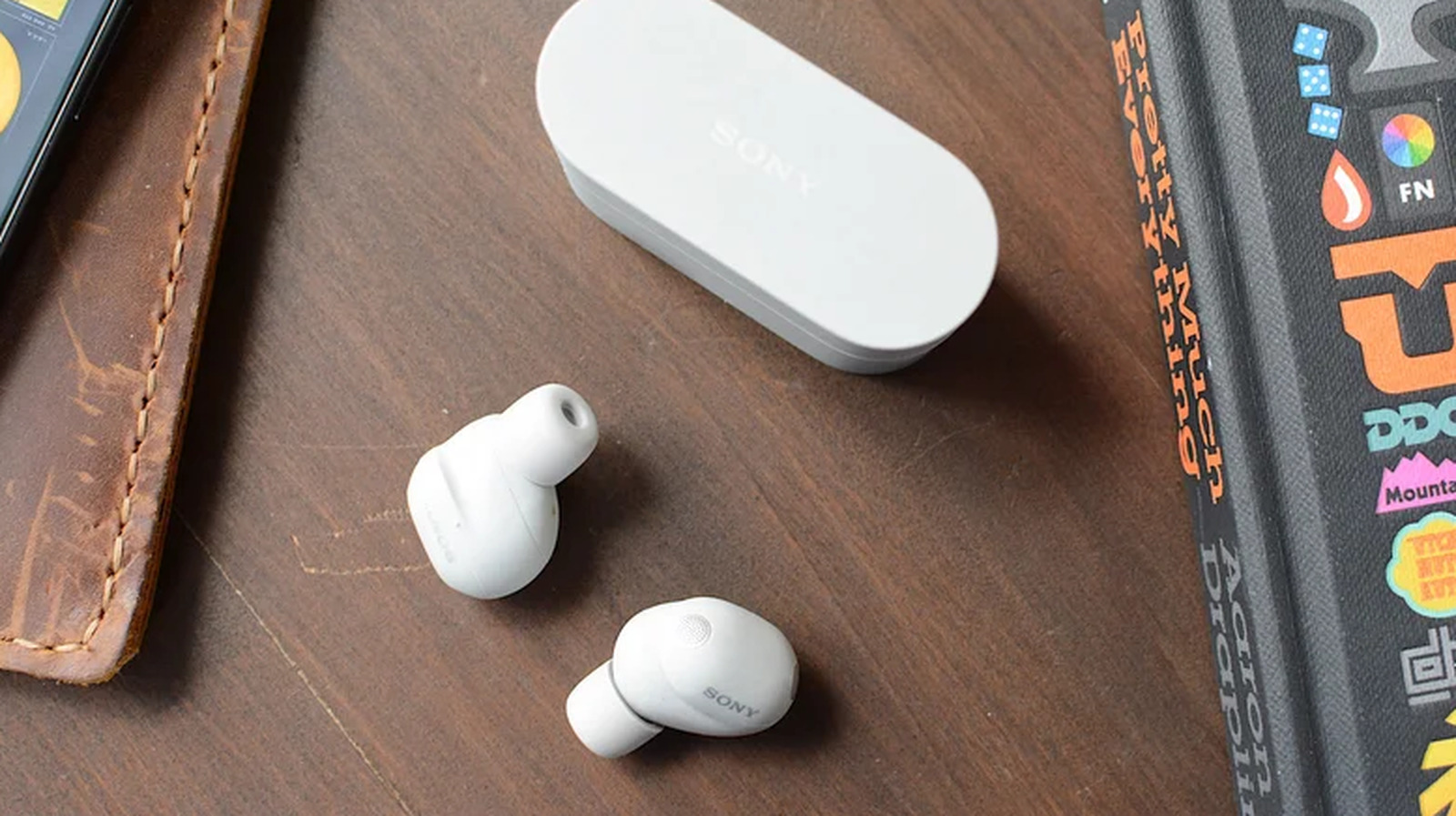
Hardware support is only half the battle. To get true high-definition wireless audio on Linux, your earbuds must support modern Bluetooth 5.3 specifications and advanced audio coding standards. Earbuds like the Sony WF-1000XM5 or newer hardware featuring Bluetooth LE audio chipsets allow you to push higher bitrates while consuming significantly less battery.
If your hardware is older, the system will gracefully fall back to SBC or AAC, but forcing the LC3 profile yields massive latency improvements during video playback and gaming.
Intel AX210 Bluetooth Wi-Fi Adapter

Your operating system can only do so much if your Bluetooth radio is stuck in 2018. Many desktop motherboards and older laptops ship with Realtek or outdated Intel wireless cards that struggle with kernel audio handshakes.
Upgrading to an Intel AX210 or AX211 NGFF card ensures your hardware supports the Isochronous Channels required for Bluetooth LE Audio, making stutter-free audio routing actually possible on Linux kernels 6.2 and newer.
How to Configure PipeWire for Bluetooth LE Audio Step-by-Step
What You Need Before Starting: A Linux distribution running kernel 6.2+, PipeWire installed, Bluetooth 5.3 adapter, and compatible wireless earbuds.
- Step 1: Check your current audio server by opening a terminal and running 'pactl info'. Verify that the server name reads 'PulseAudio (on PipeWire)'.
- Step 2: Install the required Bluetooth audio packages and LC3 codec libraries using your package manager, such as 'sudo apt install libspa-0.2-bluetooth pipewire-audio' on Debian-based systems.
- Step 3: Enable and restart the PipeWire user services by running 'systemctl --user daemon-reload', followed by 'systemctl --user restart pipewire pipewire-pulse wireplumber'.
- Step 4: Open your bluetooth configuration tool (like Blueman or GNOME Bluetooth) and pair your wireless earbuds fresh, ensuring you remove any old pairings.
- Step 5: Open 'pavucontrol' (PulseAudio Volume Control), go to the Configuration tab, and select 'High Fidelity Playback (A2DP Sink or LC3)' for your audio device.
Troubleshooting: What If Something Goes Wrong?
PROBLEM 1: Audio switches to headset mode automatically whenever an application uses the microphone.
THE FIX: Edit your WirePlumber configuration file or create an override rule in '~/.config/wireplumber/wireplumber.conf.d/' to disable automatic profile switching for Bluetooth headsets.
PROBLEM 2: The LC3 codec option does not appear in your audio settings even though your earbuds support it.
THE FIX: Ensure the 'bluez5' spa plugin is fully compiled with LC3 support on your distro, and update your Linux kernel to version 6.5 or higher for robust LE audio drivers.
PROBLEM 3: Audio crackles or stutters constantly when moving away from the computer.
THE FIX: Disable Wi-Fi power saving in your network manager or check for 2.4GHz interference by switching your Wi-Fi router to a 5GHz channel.
Original step-by-step tech guide & analysis by KejaniTech. Tried this guide or ran into a question? Drop a comment below!


Comments
Post a Comment