Stop the Battery Drain: 12 Android Settings to Fix Right Now
Recover hours of screen time by turning off the invisible background battery hogs on your phone.

You unplug your phone at 7 a.m., barely touch it during a frantic morning of emails, and look down by noon to see a terrifying 42 percent battery left. We have all lived that low-power panic, and almost nobody wants to carry a heavy power bank everywhere they go.
Instead of constantly dimming your screen to absolute darkness or living in extreme power saver mode, the secret to a long-lasting battery is cutting off the silent software background processes running without your permission.
Google Pixel 9 Pro Battery Optimization

Stock Android handles power efficiency reasonably well, but Google leaves plenty of tracking and diagnostic data-sharing turned on by default to help improve future software updates. Digging into your system preferences uncovers background loops that constantly ping servers for location history and usage diagnostics.
Disabling adaptive connectivity if you spend most of your day on stable Wi-Fi prevents your phone from aggressively hunting for cellular signals that aren't even needed. Combined with turning off touch vibrations and haptic feedback across the keyboard, you save thousands of tiny micro-motor activations over the course of a single day.
Samsung Galaxy S24 Ultra Background Services
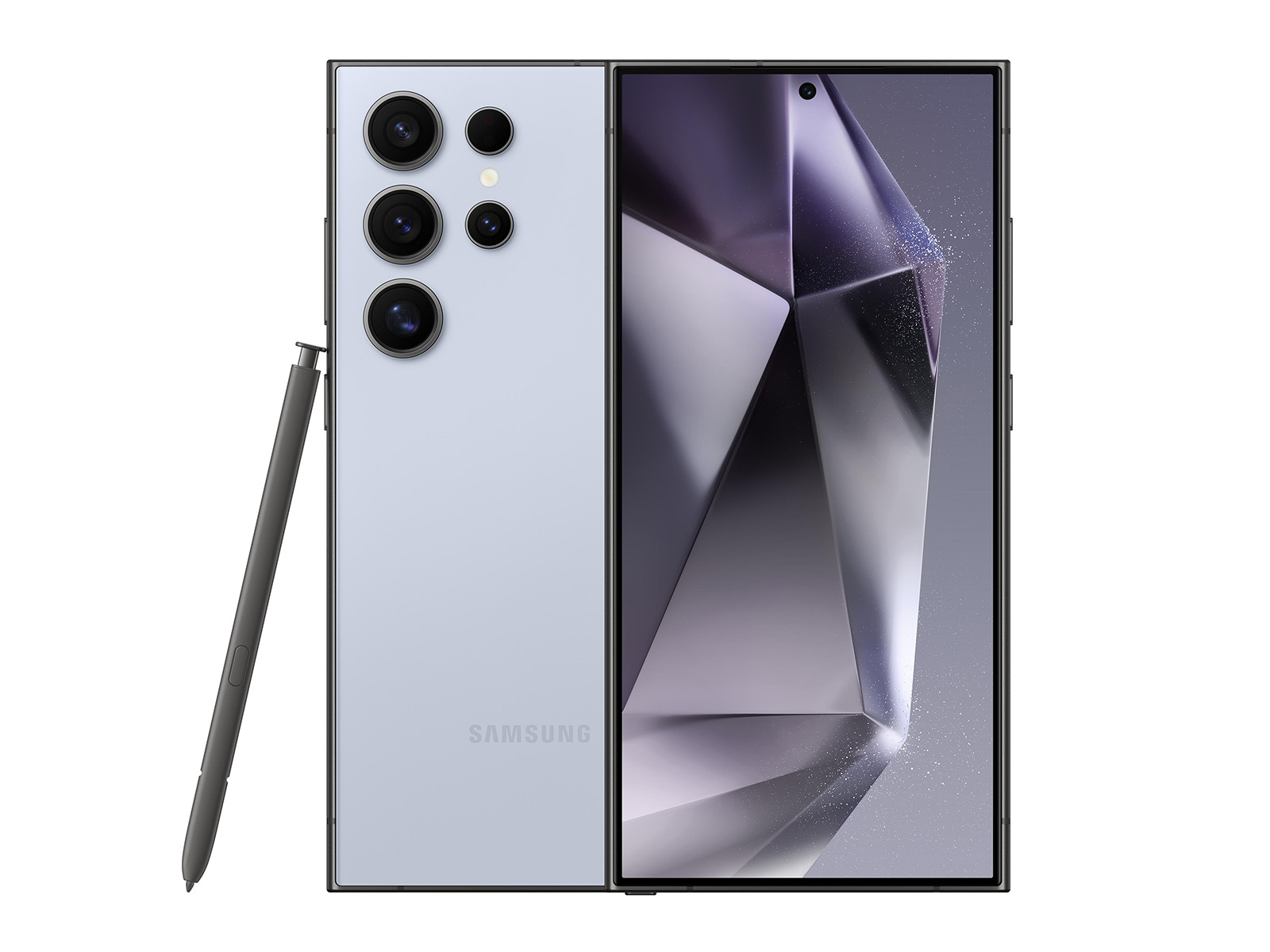
Samsung packs its flagship devices with high-refresh-rate displays and powerful processors that chew through power if left unmanaged. While that 120Hz smooth scrolling looks incredible, keeping it locked on all day long drains milliamp-hours faster than you might think.
Head straight into your device care settings and put unused apps into deep sleep mode immediately. This stops third-party apps from waking up your CPU in the middle of the night to check for notifications you do not care about until morning.
Location Services and Nearby Device Scanning

One of the biggest silent battery killers on any mobile device is continuous Bluetooth and Wi-Fi scanning. Even when you turn off Bluetooth from your quick settings dropdown, your phone often keeps the underlying radio active so apps can scan for nearby beacons and accessories.
Turning off precise location access for apps that only need a rough estimate of your city stops constant GPS polling. Paired with killing background app refresh for social media apps, your battery drain curve flattens out into a sensible line that easily lasts until bedtime.
How to Reclaim Your Android Battery Life Today
Follow these exact menu paths to disable background drains without breaking your daily app notifications.
- Go to Settings > Location > Location services, and turn off Wi-Fi and Bluetooth scanning.
- Navigate to Settings > Apps, tap your biggest social media apps, select Battery, and change them to Restricted.
- Open Settings > Display > Smooth Display (or Motion Smoothness) and lock your refresh rate to 60Hz if you want maximum battery longevity.
- Go to Settings > Sound & vibration > Vibration and haptics, and dial down keyboard and touch feedback intensity.
Original analysis & guide by KejaniTech. Drop a comment below with your thoughts, setup, or questions!


Comments
Post a Comment