Don't Toss That Old Kindle: Here is How to Repurpose It Into a Smart E-Paper Display
Turn an abandoned e-reader into a custom weather, calendar, and news dashboard that runs for weeks on a single charge.
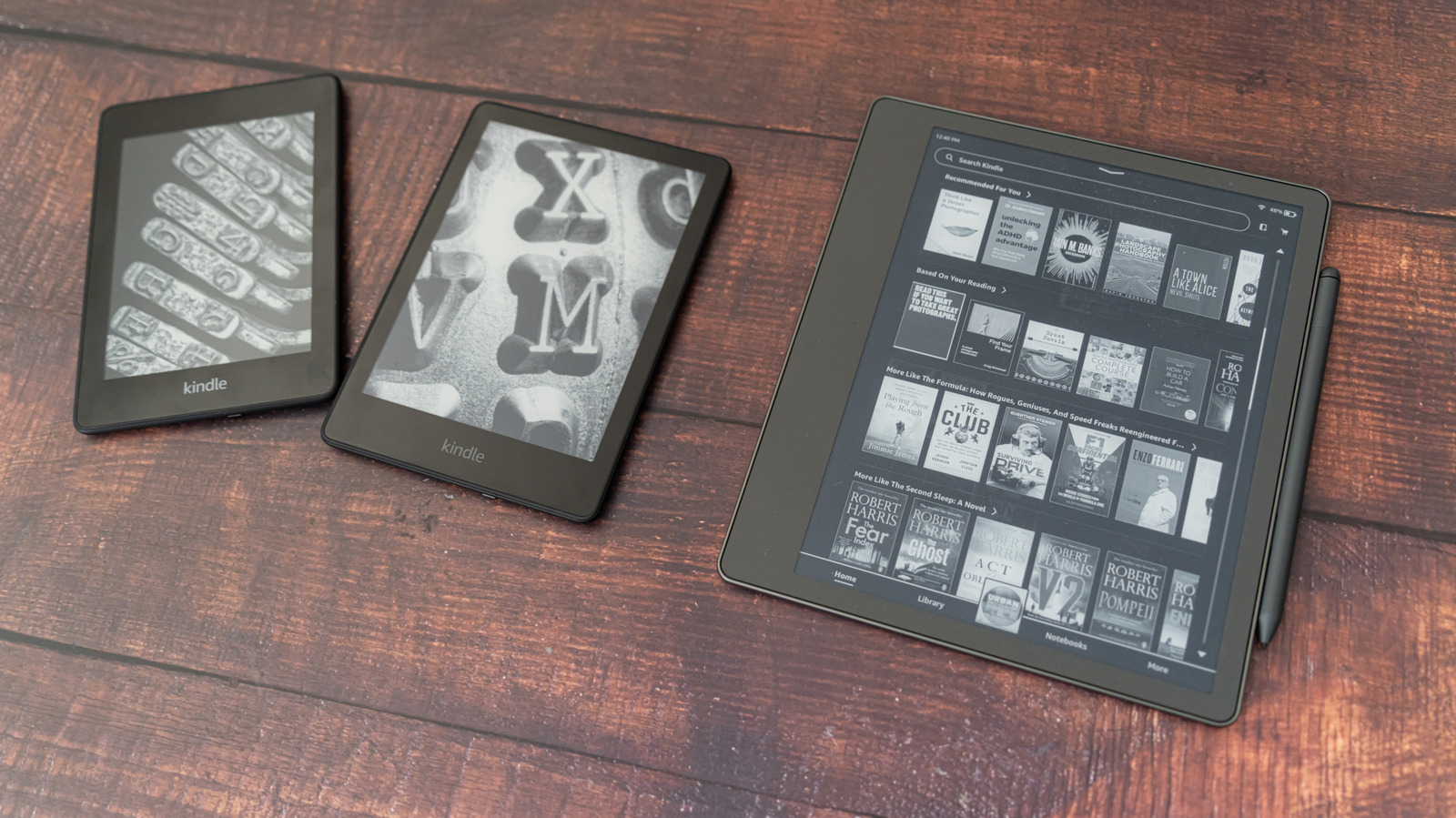
We have all got one sitting in a drawer somewhere. An old Kindle Paperwhite or base model with a battery that still holds a decent charge, collecting dust because you upgraded to a newer tablet or switched to audiobooks. Instead of letting it slowly turn into electronic waste, you can strip away its stock reading software and turn it into a dedicated, glare-free smart home dashboard.
E-paper displays are incredible for static information because they consume zero power when holding an image. By pointing your old e-reader at a local server running custom web pages, you get a gorgeous, bedside-friendly status board that does not blind you in the middle of the night.
Amazon Kindle Paperwhite

Not every Kindle is created equal for this project. Older devices running specific legacy firmware versions make the process much easier because they allow simple browser pointing or straightforward root access. If your device has an experimental web browser tucked away in its settings menu, you are already halfway there without needing to solder a single wire.
The secret sauce here is leveraging the Kindle's built-in web browser to load a lightweight local HTML page hosted on a Raspberry Pi or home server. Because e-ink screens do not refresh aggressively, you can configure your dashboard to pull data every thirty minutes, keeping battery drain to an absolute minimum.
Raspberry Pi 4 Model B

You will need a lightweight host on your local network to generate the images or web pages your Kindle will display. A Raspberry Pi 4 running Raspberry Pi OS Lite is ideal because it sips power, sits quietly in a corner, and runs Python scripts effortlessly.
Your local server will fetch weather APIs, calendar events, and transit schedules, compile them into a high-contrast black-and-white layout optimized for e-ink dimensions, and serve them locally via a simple Flask or Node.js web server.
Anker USB C Charging Cable

While e-ink screens use zero power when static, refreshing the screen and running the Wi-Fi radio to pull new data will drain the battery over a few days if left completely untethered. Plugging the Kindle into a low-profile USB wall charger ensures it runs indefinitely without manual intervention.
By hiding the cable behind a custom 3D-printed wall mount or running it neatly down a bookshelf, your repurposed gadget looks less like a DIY hack and more like a high-end smart home appliance.
How to Turn Your Old Kindle Into a Smart Display
What You Need Before Starting: An older Wi-Fi connected Kindle, a local server (like a Raspberry Pi or old PC), a local Wi-Fi network, and basic HTML/Python knowledge.
- Step 1: Check your Kindle firmware version by navigating to Menu > Settings > Device Info, and ensure your device connects reliably to your home Wi-Fi network.
- Step 2: Set up a static local IP address for your Raspberry Pi or server so your Kindle always knows where to fetch its dashboard page.
- Step 3: Create a simple HTML dashboard page optimized for your specific Kindle screen resolution (e.g., 1024x758 for older Paperwhites) using high-contrast black text on a pure white background.
- Step 4: Open the experimental web browser on your Kindle, type in the local IP address of your dashboard server, and bookmark the page for quick access.
- Step 5: Write a simple refresh script or meta-refresh tag in your HTML code to automatically reload the page every 30 or 60 minutes to pull fresh weather and calendar data.
Troubleshooting: What If Something Goes Wrong?
PROBLEM 1: The Kindle web browser crashes or runs out of memory with a script error.
THE FIX: Keep your dashboard HTML extremely lightweight. Avoid heavy CSS frameworks, complex animations, or large embedded JavaScript libraries. Render your data server-side and serve a flat, static PNG image instead of a heavy web app.
PROBLEM 2: The Kindle drops its Wi-Fi connection after going to sleep.
THE FIX: Many Kindle models disable Wi-Fi to save battery when idle. If your firmware allows it, disable sleep mode while plugged into power, or set up a lightweight background script to periodically ping the network.
PROBLEM 3: Images or text look washed out and hard to read on the e-ink screen.
THE FIX: Remember that standard e-ink screens only display grayscale, not full color. Convert all dashboard graphics to strict 1-bit black and white using dithering so the Kindle controller renders crisp, readable lines without muddy gray gradients.
Original step-by-step tech guide & analysis by KejaniTech. Tried this guide or ran into a question? Drop a comment below!


Comments
Post a Comment